Locations
Locations
Maintaining Locations is one of the very most important aspects of GEM. Locations represent the physical places where cattle are kept — pastures, pens, barns, drylots, and so on. Every animal record has a current location, and GEM automatically tracks the full history of where each animal has been and when.
Locations are also used by other parts of the system. Semen inventory and embryo storage each require designated locations of the appropriate type. User access can be scoped to a specific branch of the location tree so that remote ranch employees only see the locations relevant to them.
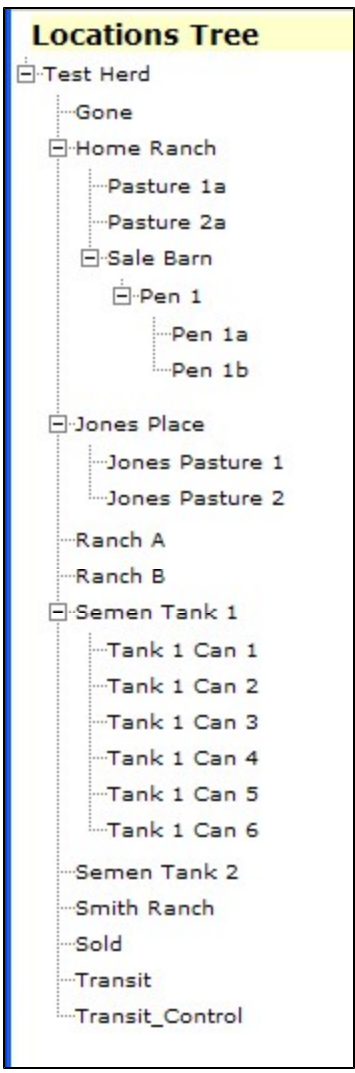
The Location Tree
Locations in GEM are organized as a tree. Your ranch (or the top of your accessible area) is at the root, and all pastures, pens, and storage areas are nested beneath it. A typical structure might look like:
Home Ranch
  ├─ North Pasture
  ├─ South Pasture
  │   ├─ Pen 1
  │   └─ Pen 2
  └─ Barn
      ├─ Stall A
      └─ Stall B
Semen Storage
  └─ Tank 1
      └─ Canister A
Locations can be nested to any depth. The tree is displayed with +--- indentation markers to show the hierarchy. When you move animals or record inventory transactions, you select the most specific location that applies.
Max Location and User Access
Each user has a Max Location set in their user record. This is the highest point in the tree they can access. A user can see and work with their Max Location and everything nested beneath it, but nothing above it. This allows remote employees or off-site partners to be scoped to just the locations they manage.
The Max Location is set when creating or editing a user (Administration → Users). It is also separate from the user's Last Location, which is the location they were working in when they last logged out and is used as their default starting location on the next login.
Location Types
Locations can be assigned one or more types. Types control which locations are available for specialized operations:
| Type | Used by |
|---|---|
| Semen | Semen Inventory — only locations of this type appear when recording semen transactions |
| Embryo | Embryo transfer records — only locations of this type appear for embryo storage |
A location can have multiple types (e.g., a facility used for both semen and embryo storage). Locations with no type assigned are general-purpose animal locations.
New Location
Administration → Locations → New Location
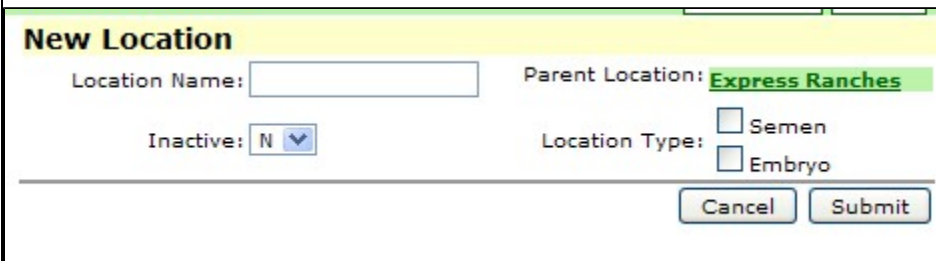
Creates a new location and inserts it into the tree under a chosen parent.
Fields
Location Name — Required. The name that will appear throughout GEM. Must follow these rules:
- Cannot be blank
- Cannot be one of the reserved system names:
SOLD,GONE,TRANSIT,TRANSIT_CONTROL, orNULL - Cannot contain the following characters:
' " \% ; \ *`
Parent Location — Required. Select where in the tree the new location should live. A popup tree selector shows all locations accessible to you. The new location will be created as a child of whatever you choose here.
Inactive — Set to Y to mark this location as inactive. Inactive locations do not appear in location dropdowns when moving animals or recording inventory. Set to N (the default) for a location that is in use.
Location Type — Optional. Check any types that apply (Semen, Embryo, or other configured types). A location can have multiple types. Leave unchecked for a standard animal location.
Edit Location
Administration → Locations → Edit Location
Allows you to rename a location, move it to a different parent, change its active status, or update its type assignments.
What can be changed
- Location Name — Can be renamed using the same rules as New Location.
- Parent Location — Moving a location to a new parent repositions it (and all its children) in the tree. A location cannot be moved to one of its own descendants, and cannot be made its own parent.
- Inactive — Changing a location to Inactive cascades to all of its children — the entire subtree is deactivated. Reactivating a location does not automatically reactivate its children; each must be reactivated individually if needed.
- Location Types — Type assignments can be added or removed at any time.
Note: The reserved system locations (
SOLD,GONE,TRANSIT, etc.) cannot be edited.
View Locations Tree
Administration → Locations → View Locations Tree
Displays the full location hierarchy as an interactive, expandable tree. Branches can be expanded or collapsed by clicking on them. The tree shows all locations accessible to you based on your Max Location setting.
This view is useful for reviewing how locations are organized before adding new ones or troubleshooting why a location isn't appearing in a dropdown elsewhere in GEM.
Users
The Users Administration section allows you to Add , Edit or Delete User IDs from the GEM system.
Credits
Credits are prepaid account balances assigned to specific people (creditors) in GEM. They represent amounts that can be automatically applied against future auction invoices, reducing what the buyer owes at billing time. Credits are created and managed by administrators and are applied per-person.