Sets
An animal set is simply a list of animals. You can think of it as a list of animal IDs on a sheet of paper. A set can contain an unlimited number of animals and an animal can be in an unlimited number of sets.
Options for set operations can be found in the Options box in the upper right-hand corner of the Sets screen. It should be noted that actions for sets in the Options box have no effect on animal records, that is animal records are not created or altered by the actions shown in this Options box.
An animal set can be created with a query of the database using logical statements (New Set) or by manually adding animals to a set (Edit Set) or by searching for a single animal via Animal Find. The results of a single animal search are placed in a special system set called "Single Animal".
Your current set is the group of animals/embryos whose records you wish to report on or perhaps edit. You can change your current animal set in the Animal Sets screen by selecting it from the Current Set drop down menu and clicking "Change".Your currently active Animal Set always appears in the upper left-hand corner in the light green header area of the main GEM screen, with the number of animals in parentheses.
All Sets you own (those you have created) are listed alphabetically at the top of the page followed by sets owned by one of your co-workers which they have Shared. When a Set is Shared, it can be used, edited, copied, rebuilt and merged by your co-workers, but not deleted. Your shared sets are seen by other log ins at your operation but they can never by seen by other GEM clients.
You can also make a set Inactive (out of the alphabetical list but not deleted). You can retrieve the inactive sets by checking the Inactive Sets box and clicking Apply.
You can see what animals are in a given set by clicking a Set's Name. A pop-up window appears with generic animal info, which is actually the Animal Report.
The overall design/purpose of Animal Sets and People Sets are nearly identical. An Animal set is simply a list of animals, while a People set is simply a group of people.
New Set
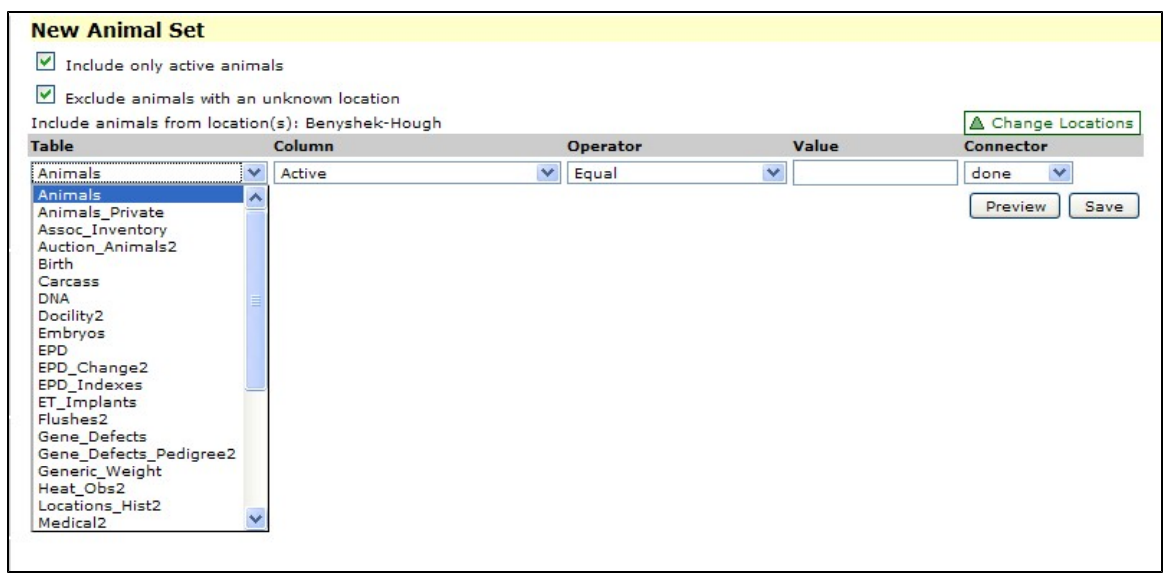
You can create sets using logic (based a data contained in GEM) by clicking the New Set button. The New Animal Set screen is displayed allowing you to choose the logic you wish to build a new set. Check "Include only active animals" if that is what you want. The default is checked "on", meaning only active animals are chosen. Check "Exclude animals with an unknown location" if you want only animals with a known location OR animals which you own an interest, but are located on other GEM client's ranches/farms. Click the "Change Locations" link to get a window to narrow down the locations to which you wish to apply your logic. You can choose multiple locations in this window. When you choose a "Parent" location, all locations located under it are automatically assumed. Note, this screen "remembers" the last location(s) you have selected! You must manually change it back to your main (uppermost) location when you are ready. When creating a new set, you must first choose the Table (main category of data) from which you wish to select. Click on this drop down to get a list of all the GEM tables. Highlight the table name you want to use. Note, many drop down lists in GEM are longer than the window and you must move the scroll bar down to see the entire list.
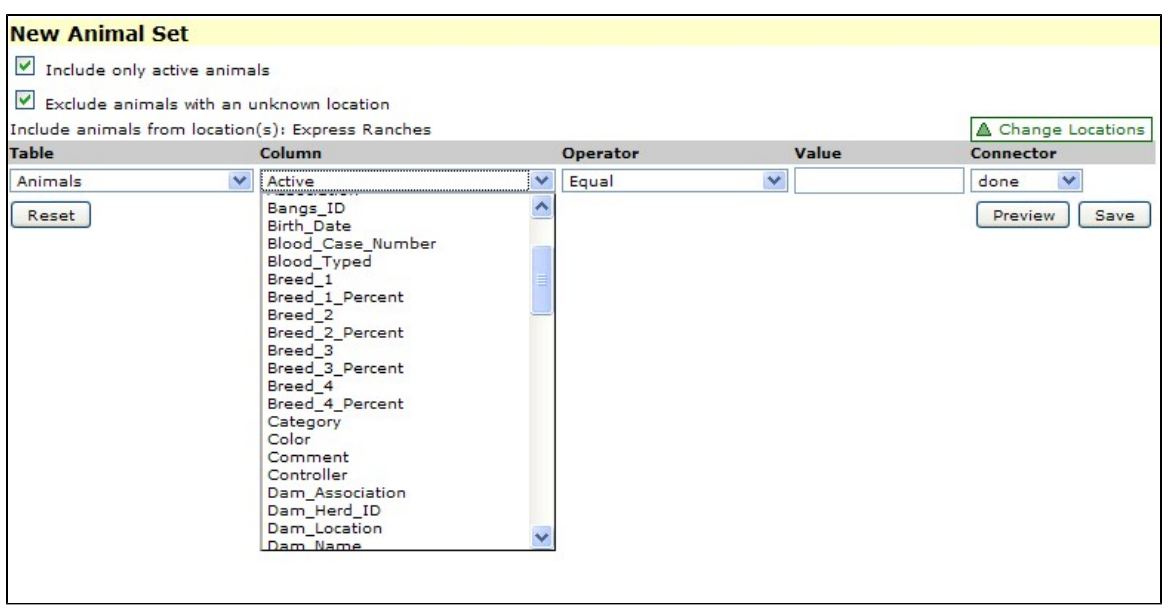
When you have selected your Table, you must next select your Column. Names in the Column list are individual data fields contained in the table. Note, the Column list is totally different for each table you choose.
New Empty Set
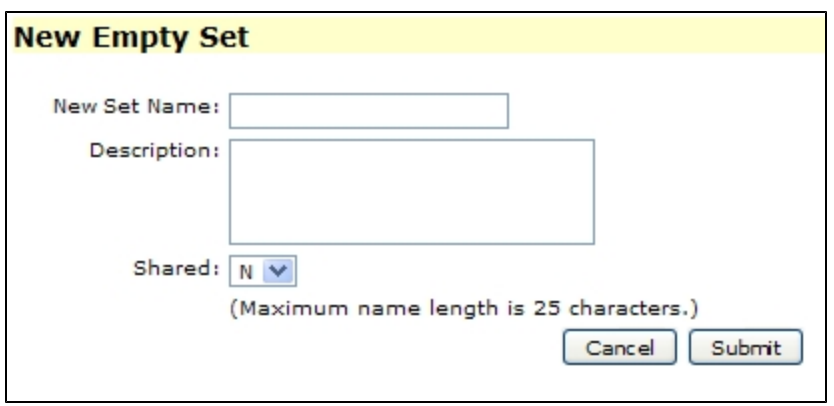
Creates a new set which you name. Initially this set has no animal/embryo IDs in it. This is useful for developing sets by hand using Edit Set shown in the Options box at the upper right-hand corner of the Sets sets screen (see Edit Set to see how you add animals to a set). An Empty set can also be used to accumulate animals during the entry of new animals either new baby calves or purchased animals. These sets can not be automatically rebuilt since there is no query information associated with the set.
New Ancestor Set
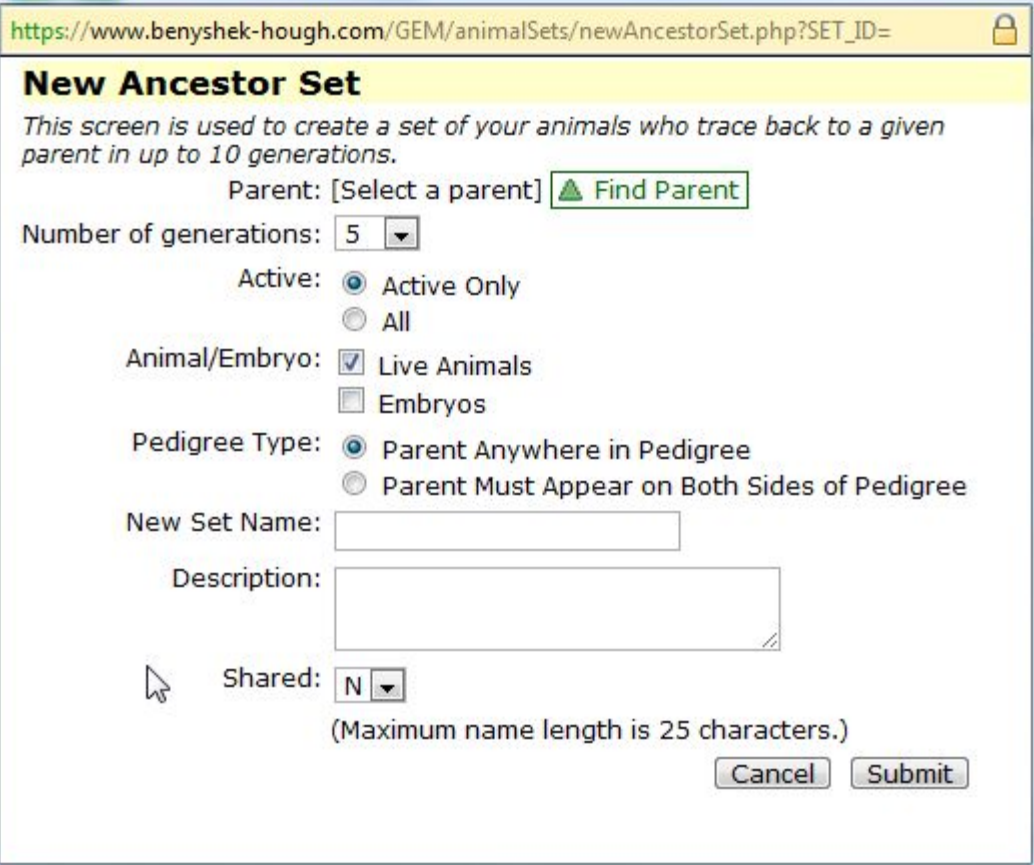
This option allows you to build a set of ancestors for any given individual. The pop up box shown below allows several options by using the check boxes and radio buttons.
Delete Set
Any set can be deleted by simply highlighting the radio button next to the set and clicking "Delete Set" in the Options box at the permanently upper right-hand corner of the sets screen. Note: Once a set is permanently deleted is can not be retrieved. Also note that deleting a set does not delete any records from the database. An alternative to deleting a set is to make the set inactive (see Edit Set) which removes the set from your list of sets but does not permanently delete it.
Edit Set
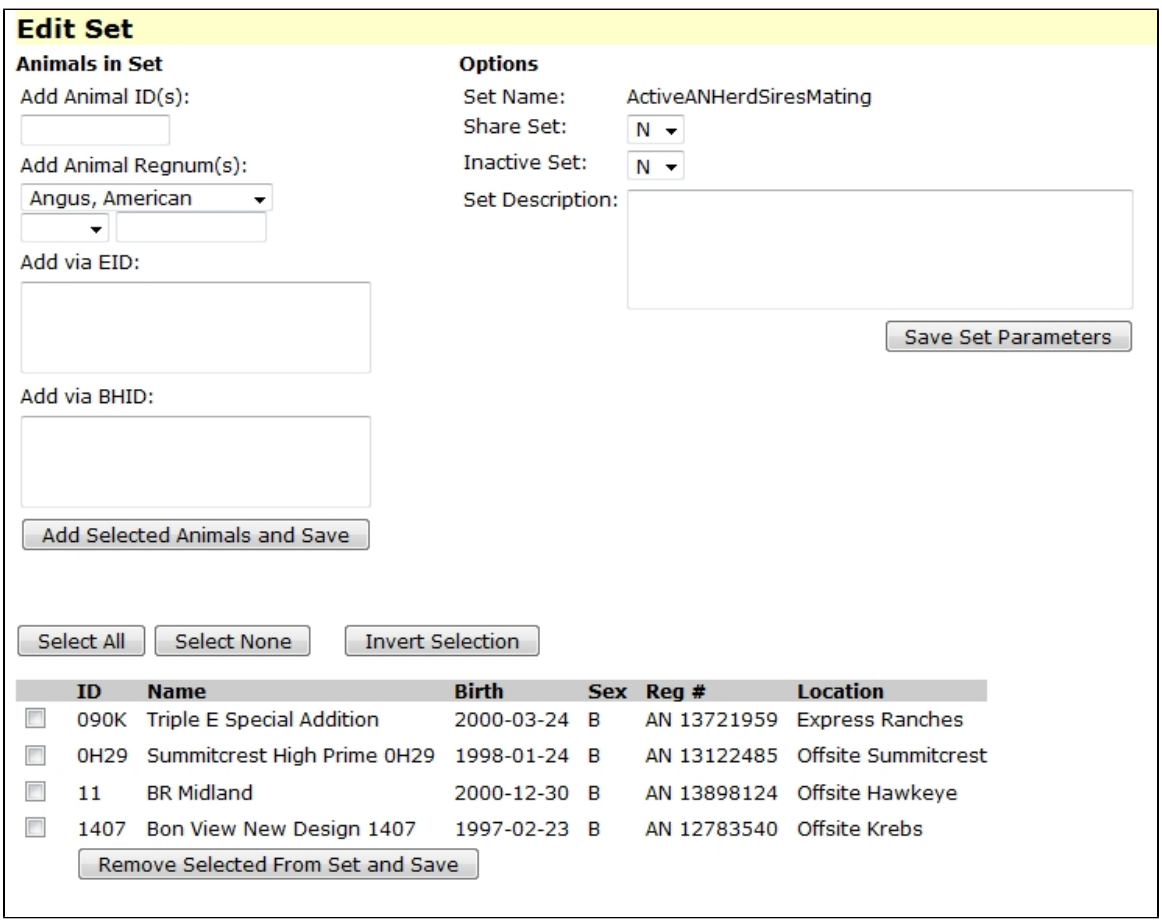
Edit Set allows you to alter the the contents of a set. There are several operations that can be performed from the screen shown below. The set parameters may be changed. For example the a set may be declared shared or not shared by simply clicking a 'Y' or 'N' into the Share Set box at the upper right-hand corner of the screen. Sets may be made Inactive in this screen. You must click the "Save Set Parameters" button before these operations take effect. Animals may be added to the set via IDs, Registration Numbers, EIDs or BHIDs. To add animals via IDs simply enter the IDs in the Add Animal ID(s) box separated by commases. Animals may be added via registration numbers in the same manner. EIDs and BHIDs may also be used and do not need comma separation. You must click the "Add Selected Animals and Save" button before the animals are added to the set. Animals may be deleted from a set by checking and animal(s) box and clicking the "Remove Selected From Set and Save" button at the bottom of the screen. Note you have the buttons to speed up your selections for removal: "Select All", "Select None" and "Invert Selection". Note: If the set was built using the query system and you Rebuild the set the animals removed from a set will be added back automatically. Conversely, if you added animals to a set built by a query and you Rebuild those animals will be lost from the set if they do not meet your query criteria.
Copy Set
The Copy Set operation allows you to copy any set showing on the Sets screen. Highlight the radio button to the left of a set and then click the "Copy Set" link in the Options box in the upper right-hand corner of the Sets screen. A pop up box will appear showing the set name with _copy attached to the name. You may change the name of the set. A copied set includes any query information that may have been associated with the set. A copied set with query informaiton attached to the set may be rebuilt using the Rebuild operation. The Copy Set operation is often used when one wishes to keep the original set in tact and at the same time need a similar set with some animals removed (animals can be removed from a set via Edit Animals).
Rebuild Set
Set which have query information attached to them may be rebuilt via the Rebuild Set operation. This operation only works for those set which were built using the query system in New Set (see discussion under New Set). Sets created by hand, that is by adding animals to a set via Edit Animals, can not be rebuilt. Note: When a set is rebuilt via the Rebuild Set any animals added to the set by hand in Edit Set will be lost fromt the set if they do not meet the query information criteria.
Merge Sets
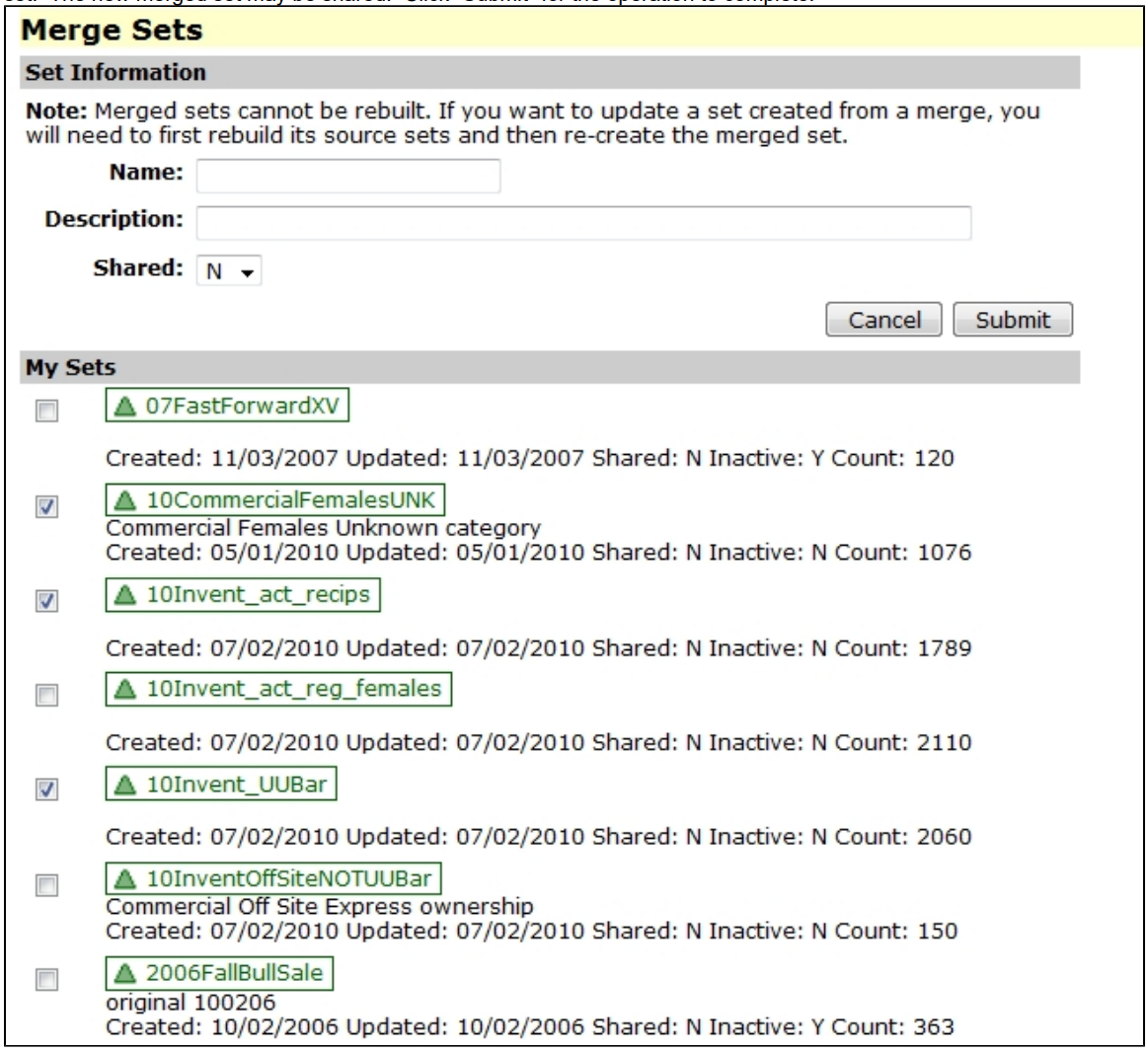
Two or more set may be merged without ID duplication by clicking the "Merge Sets" link in the Sets screen Options box. When the screen shown below emerges check the boxes of those sets you wish to merge (three sets checked in the example below). Provide a name for the new merged set. The new merged set may be shared. Click "Submit" for the operation to complete.
Copy or Move Animals to Set
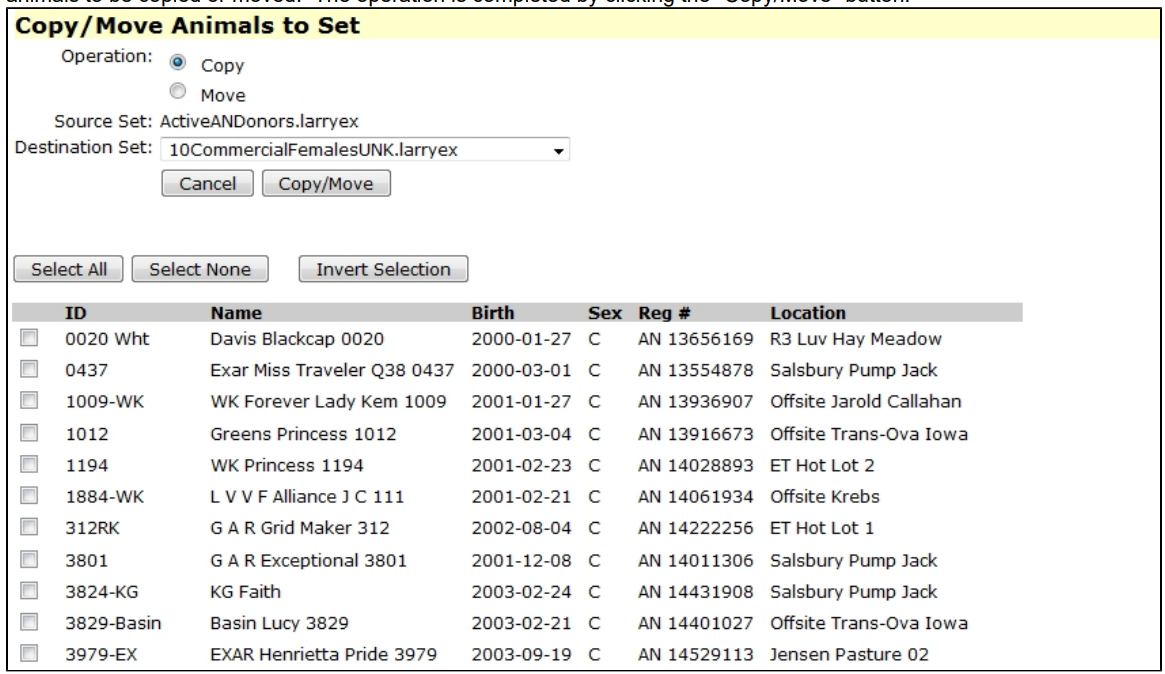
Animal IDs may be copied or moved from one set to another. Start the process by highlighting the set which contains animals you wish to move to another set and click the link "Copy/Move Animals to Set" in the Options box shown in the upper right-hand corner of the Sets screen. The screen shown below will appear. Select the operation 'Copy' or 'Move' by highlighting the appropriate radio button. Copy will simply copy IDs to the destination set whereas Move will actually move them to the destination set. Thus the latter actually removes the animal IDs from the current set. Animal IDs can be copied or moved to any set by selecting the appropriate set from the Destination Set drop down. Animal IDs to be copied or moved must be check marked accordingly. The 'Select All', 'Select None' and an 'Invert Selection' buttons can speed up the check marking of animals to be copied or moved. The operation is completed by clicking the "Copy/Move" button.
Order Simulated Mating Sires
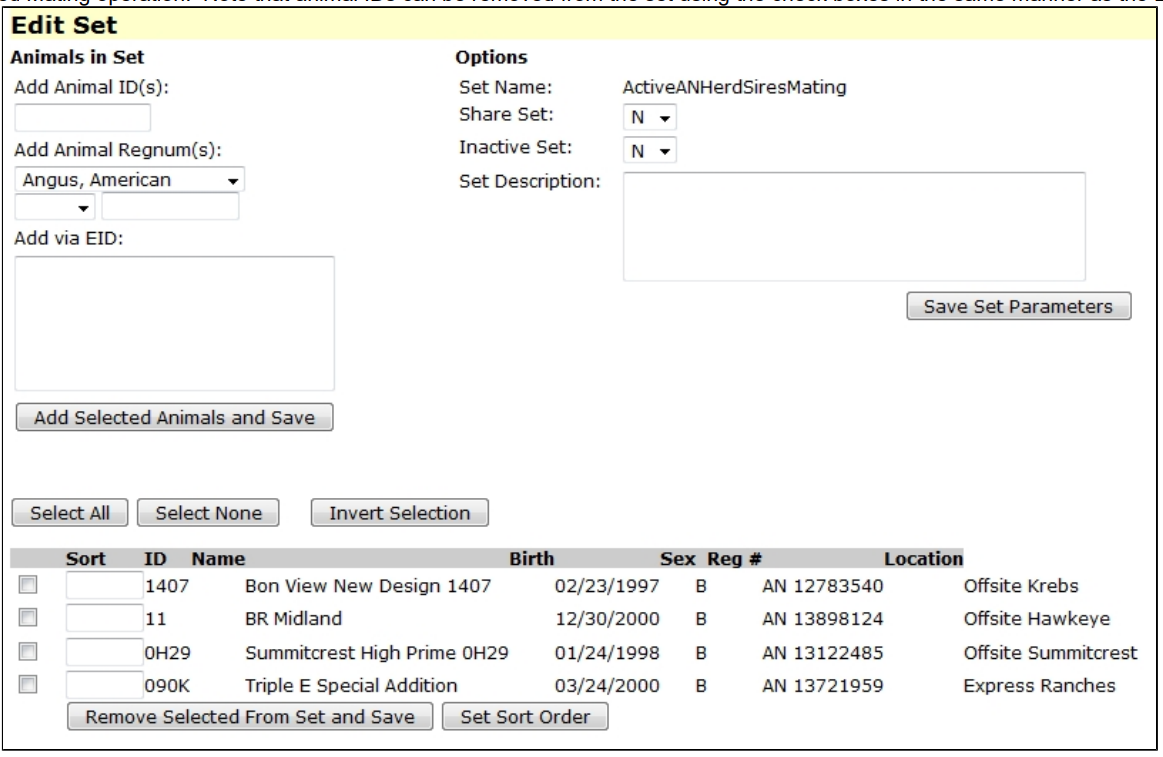
This option is used in conjunction with the Edit operation called "Simulated Mating" (see Edit Simulated Mating). The screen for this option provides all of the operations under Edit Set and in addition allows you to order the animals in the set. Usually the animals in the set are test sires you wish to look at in the Edit Simulated Mating operation. The screen appears as follows showing the spaces where a sort order can be entered. The sort order will be retained when you click the button 'Set Sort Order'. This sort order will be how the bulls are presented in the Edit Simulated Mating operation. Note that animal IDs can be removed from the set using the check boxes in the same manner as the Edit Set option.
The sire set is selected when running Simulated Mating Setup (Animals → Edit → Simulated Mating Setup). The EPD traits displayed alongside those sires are controlled by an EPD List, which is configured under Administration → Simulated Matings (see Simulated Matings).
Managing Animals
Most functions dealing with animals are under the section of the main menu. Animals
Find - Animals
The 'Find' link allows you to search for an animal (or group of animals) based on a selection criterion (see first screen below). The criteria available are Animal ID, Registration Number, EID, Tattoo, and BHID. The BHID is an internal database number unique to a particular animal similar to a registration number but specific for the GEM database. There is an Active Status radio button that defaults to "Active" which means the search will be limited to animals active for the log in operation. By highlighting the "All" radio button the search will look thoughout the database according to the criterion specified. Animal Find searches are case-insensitive, meaning it does not matter if you type in a upper or lower case letter, the search ignores the case of your letters. Search criteria includes: Animal ID .