Users
Users
The Users Administration section allows you to Add , Edit or Delete User IDs from the GEM system.
Add User
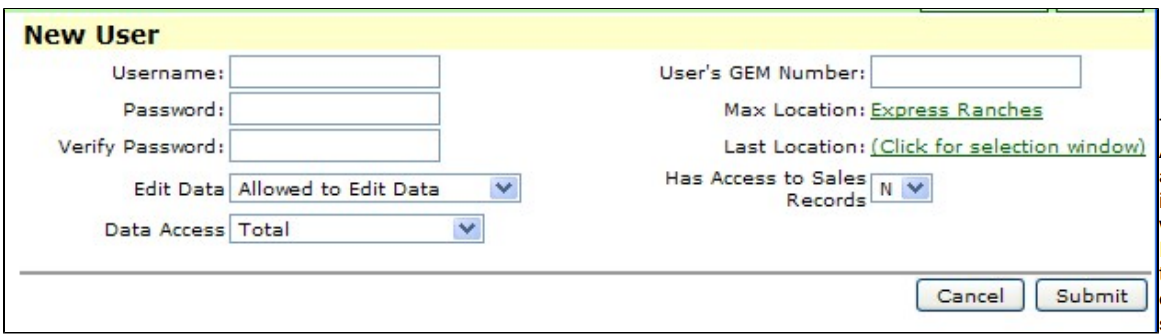
The Add User Administration screen allows you to add new user IDs for GEM user from your ranch. We strongly recommend that each person using GEM has his own personal User ID. Thus, User IDs should not be shared.
Both User ID and password must be between 3 and 8 characters (letters or numbers) long and are case-sensitive. Neither spaces nor special characters are allowed in User IDs or Passwords. Note that passwords can be changed by the user himself via Preferences / Change Password.
The User's GEM Number is the number associated with this user's people record in GEM. Entering this number is required if this user is to be a GEM administrator.
The Max Location is usually the uppermost location at your ranch. The only exception to this if this new user is at a "remote" ranch location and he should only have access to animals in his ranch's locations.
Last Location is typically not used, thus you can usually skip this.
The Edit Data drop down box is "Allowed to Edit Data" or "Not Allowed to Edit Data". If you want this person to look at information, but never change anything, the Edit Data choice should be "Not Allowed to Edit Data".
Has Access to Sales Records is Yes / No. Since accessing sale or purchase info is very secure in GEM, you have the ability to limit a user's access to only non-money data.
There are several Data Access choices:
- Total: This is the normal Data Access choice and gives the user access to all screens in GEM. Ranch employees nearly always have this access.
- Offsite Donor Owner: This access type is designed primarily for your partners in donor cows but can also be used for your partners of non-ET cattle. This user type has access to any animal he owns or co-owns with you. As he has calves born or he purchases cattle, he automatically has access to them. This user type can only see reports for his cattle and cannot enter or change any data. This user's GEM Number must be entered.
- Offsite ET Center: Designed for commercial ET techs to enter data into GEM. This user type only has access to donor cows but can edit or enter any data associated with this donor cow. This user's GEM Number must be entered.
- Single Set User: This user type has access to only one set of cattle,
Single Animal.xxxxxwherexxxxxis the User ID. He has access only to reports for this set of animals and can never add or change any GEM data. This user's GEM Number must be entered. - Sale Manager: As the name implies, this user type is for sale managers and consultants. They have total access to all Auction screens and can enter or edit data within these auction screens only.
Edit User
The Edit User Administration screen allows you to edit information associated with an existing User ID. After you choose the User ID from the drop down list, the screen is exactly like the Administration screen. Add User
Delete User
The Delete User Administration screen allows you to remove a User's access to GEM. His shared animal and people sets remain intact, but he is no longer able to log onto GEM. We strongly recommend when an employee no longer works for your ranch, you immediately Delete his User ID.
Administration
The Administration screens are designed to control how you and others on your ranch access GEM. These screens are not normally accessed on a daily basis, but are rather "special" screens to "set up" things initially in GEM once or just a few times. Some Administration screens such as Credits or Data Uploads and Downloads would typically be accessed more often, though.
Locations
Maintaining Locations is one of the very most important aspects of GEM. Locations represent the physical places where cattle are kept — pastures, pens, barns, drylots, and so on. Every animal record has a current location, and GEM automatically tracks the full history of where each animal has been and when.