Browse - Animals
All Animal Browse screens are meant to look at specific information for one animal on the screen. These are not designed to be printed to paper. Animal Reports are designed to go to paper and print specific data for a group of cattle, usually your currently active animal set.
After clicking 'Browse' to the left of the screen you simply click on the animal ID to view different animals. Choose different Animal Browse screens from the drop down menu at the top of the screen.
All Animal Browse and Edit screens have four lines at the top of the screen in dark green background color. This is the basic descriptive info on an animal that will tell you exactly which animal you are viewing or editing.
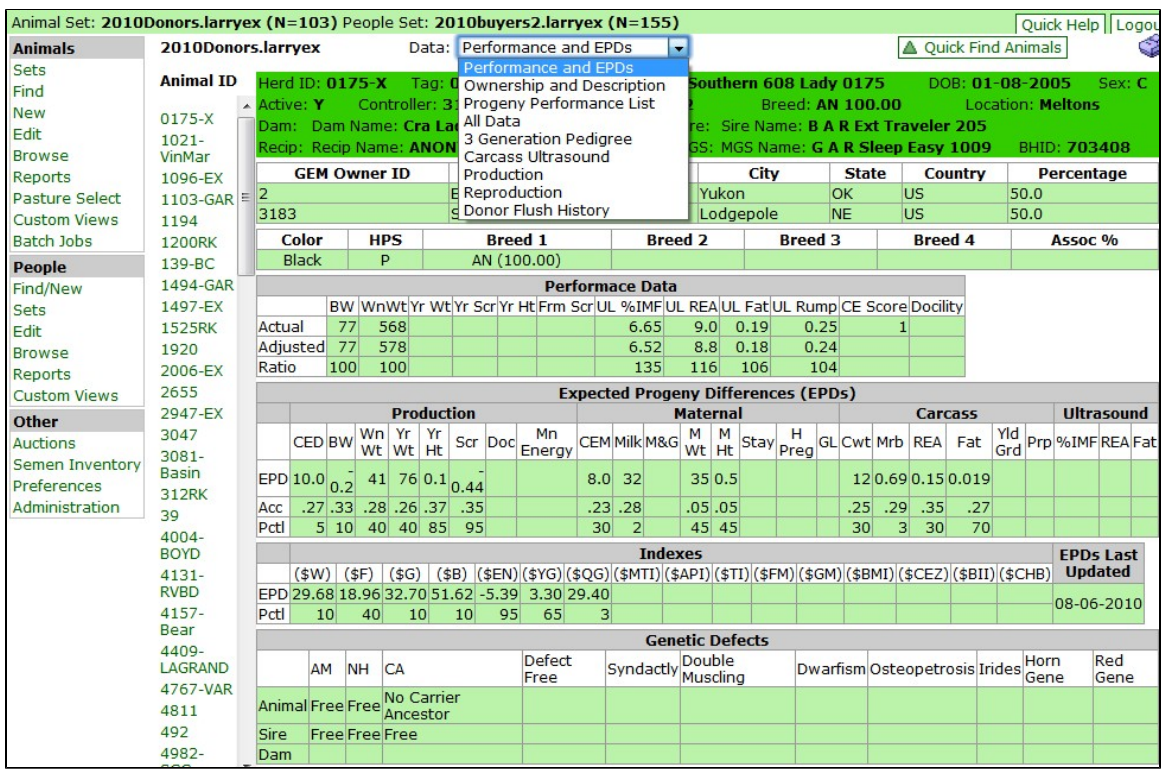
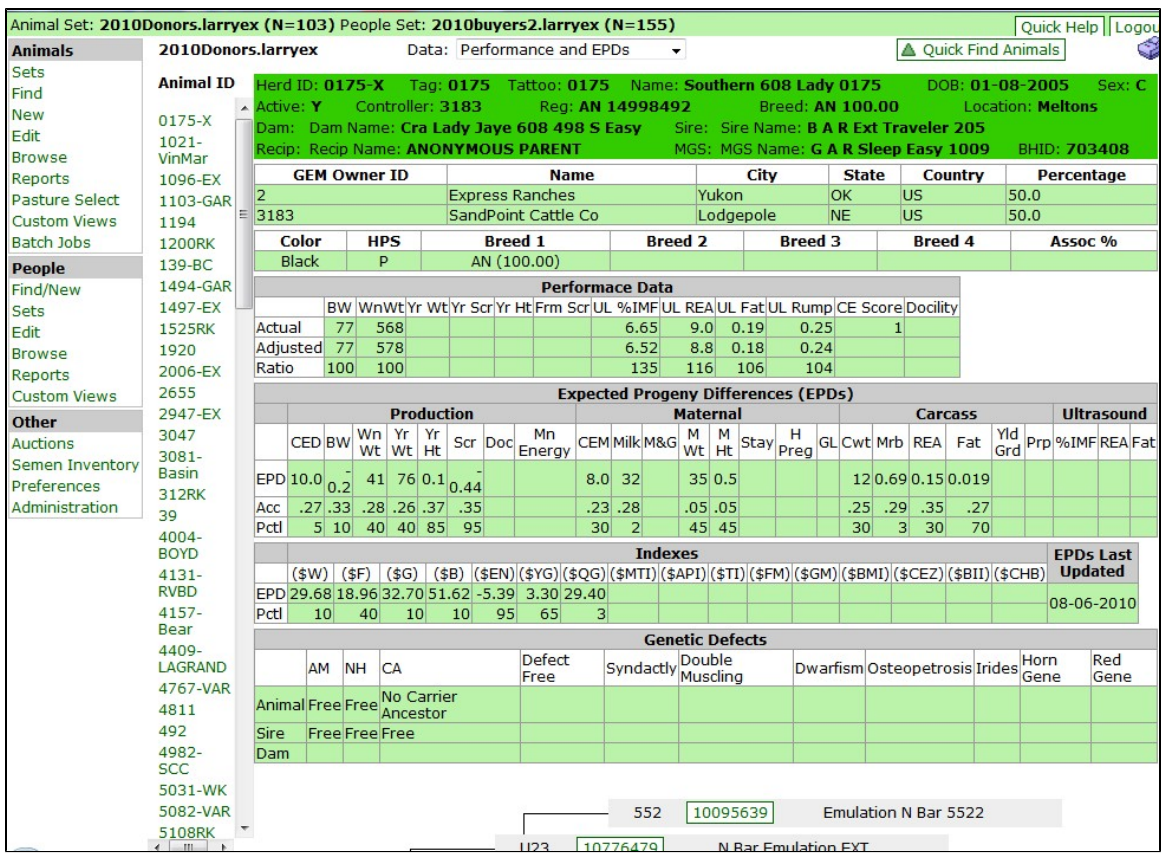
Performance and EPDs
The Performance and EPDs Animal Browse screen is the default screen of Browse Animals. The screen as seen below allows you to see most of the pertinent performance data available on any one animal in your currently active set (see Sets). You simply click from one animal ID to the next to see the information. Aas you click an ID it changes color so you can easily keep you place in the list. At the bottom of the screen not completely shown in the example below is a three generation pedigree. This is a live pedigree such that clicking on any ancestor's registration number will bring up the browse screen for that ancestor without disturbing your current active set.
Note that this is the default screen when you use the 'Find' link to search for animals (see Find).
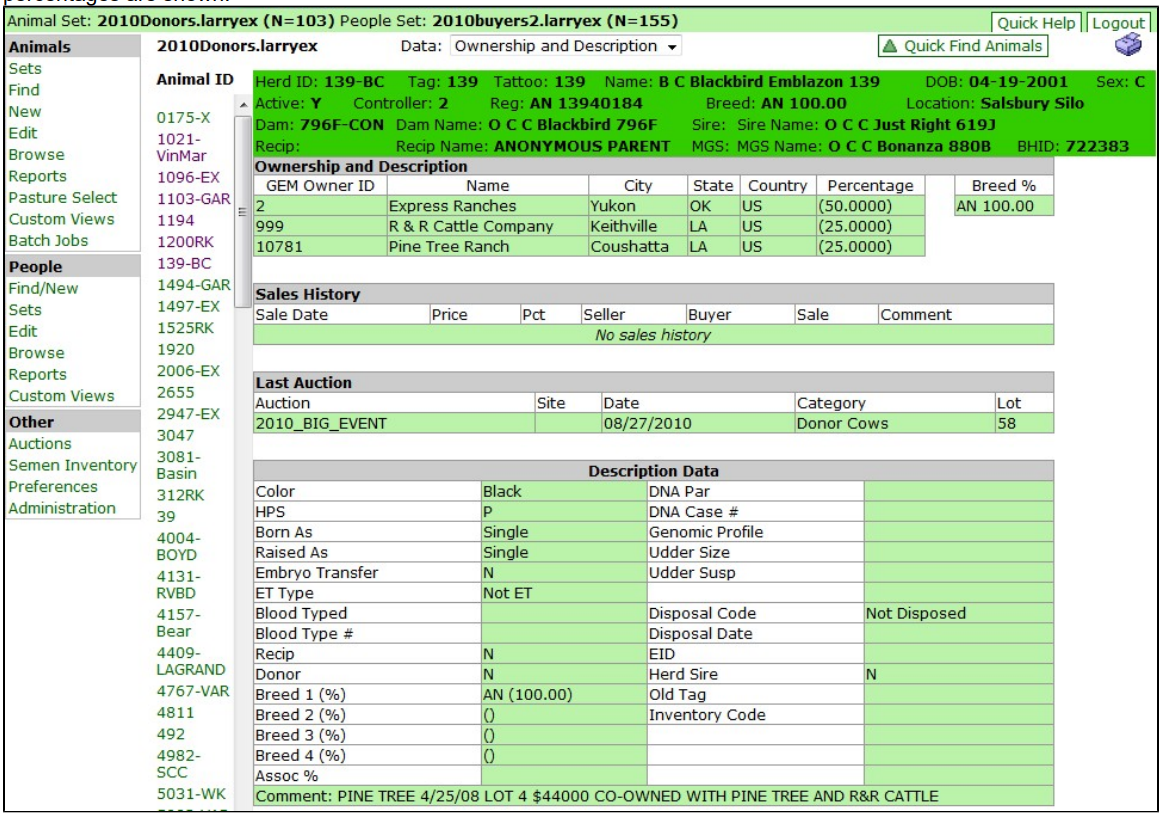
Ownership and Description
The Ownership and Description Animal Browse screen as the name implies shows you various information maintained in the database about an animal. Any sales history and the last auction the animal was in is displayed. For composite or crossbred animals the breed makeup percentages are shown.
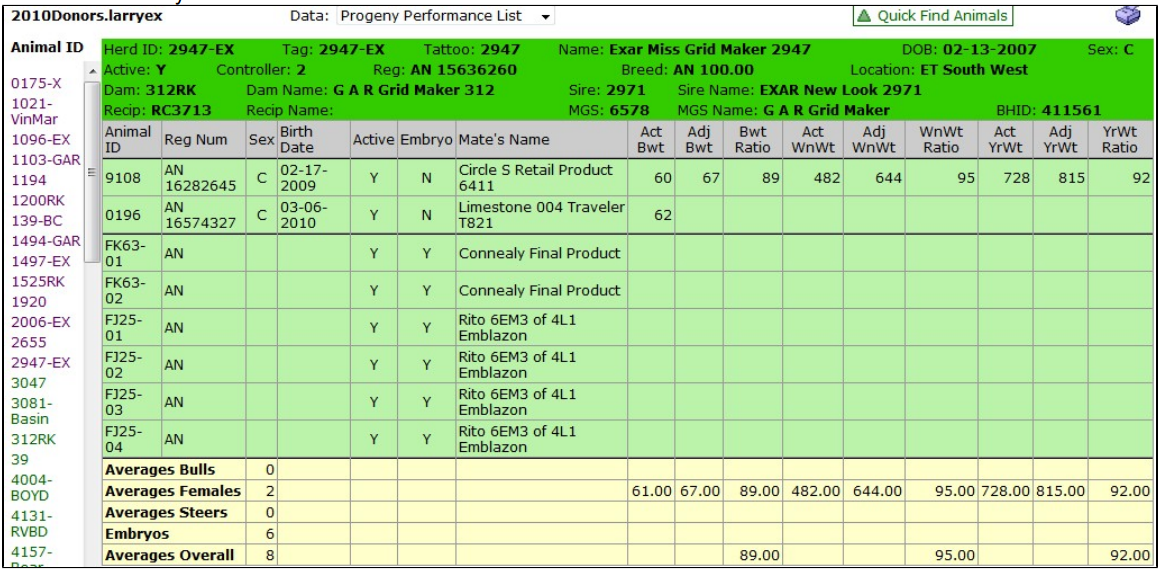
Progeny Performance List
The Progeny Performance List Animal Browse screen provides a list of the progeny and embryos for an individual. The screen provides the individual performance data for each progeny and progeny averages. Simply click through the IDs on the left of the screen to see the information on each animal in your current active set.
All Data
The All Data Animal Browse screen.
3 Generation Pedigree
The 3 Generation Pedigree Animal Browse screen shows a complete three generation pedigree for the animals in your current active set. The registration numbers are live so that you can click on any ancestor and see their three generation pedigree. This screen can be useful if you need to print a three generation pedigree. You can print the pedigree by clicking the printer icon in the upper right-hand corner of the screen.
Carcass Ultrasound
The Carcass Ultrasound Animal Browse screen provides all of the adjusted and unadjusted ultrasound data available on any animal in your current active set along with its ultrasound EPDs.
Production
The Production Animal Browse screen shows you all of the adjusted and unadjusted performance data for any animal you click on in your current active set. EPDs are also provided.
Reproduction
The Reproduction Animal Browse screen...
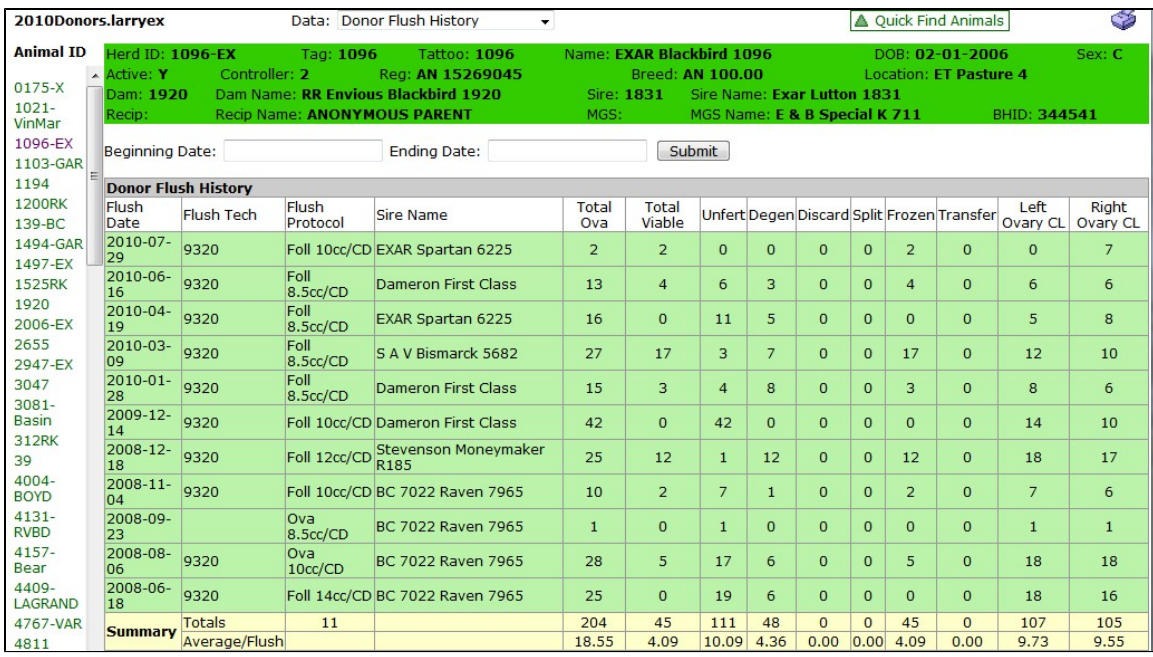
Donor Flush History
The Donor Flush History Animal Browse screen provides the flush history for donor females. Each flush is shown along with averages at the bottom of the screen. The screen can be date ranged to look at a specific time interval for a donor.
Edit - Animals
Clicking the "Edit" link provides access to a number of edit/entry screens as shown in the insert below. Several of these screens serve both as edit screens for changing existing information and also for entering new information. Your current active set animal IDs listed in sorted order is always shown in the edit/entry screens. A screen is selected by clicking on the screen name in the drop down. You can navigate from one screen to another for any given set by clicking on the screen name in the drop down.
Reports - Animals
Animal Reports are where you report information on multiple animals at one time. Typically, animal on the report are those in your active animal set. Those reports that do not print your currently active set are so noted. There are five output options which you can output your report. Not all reports have all output options though. Only non-grayed-out (colored) options are available for a given report.