Reports - Animals
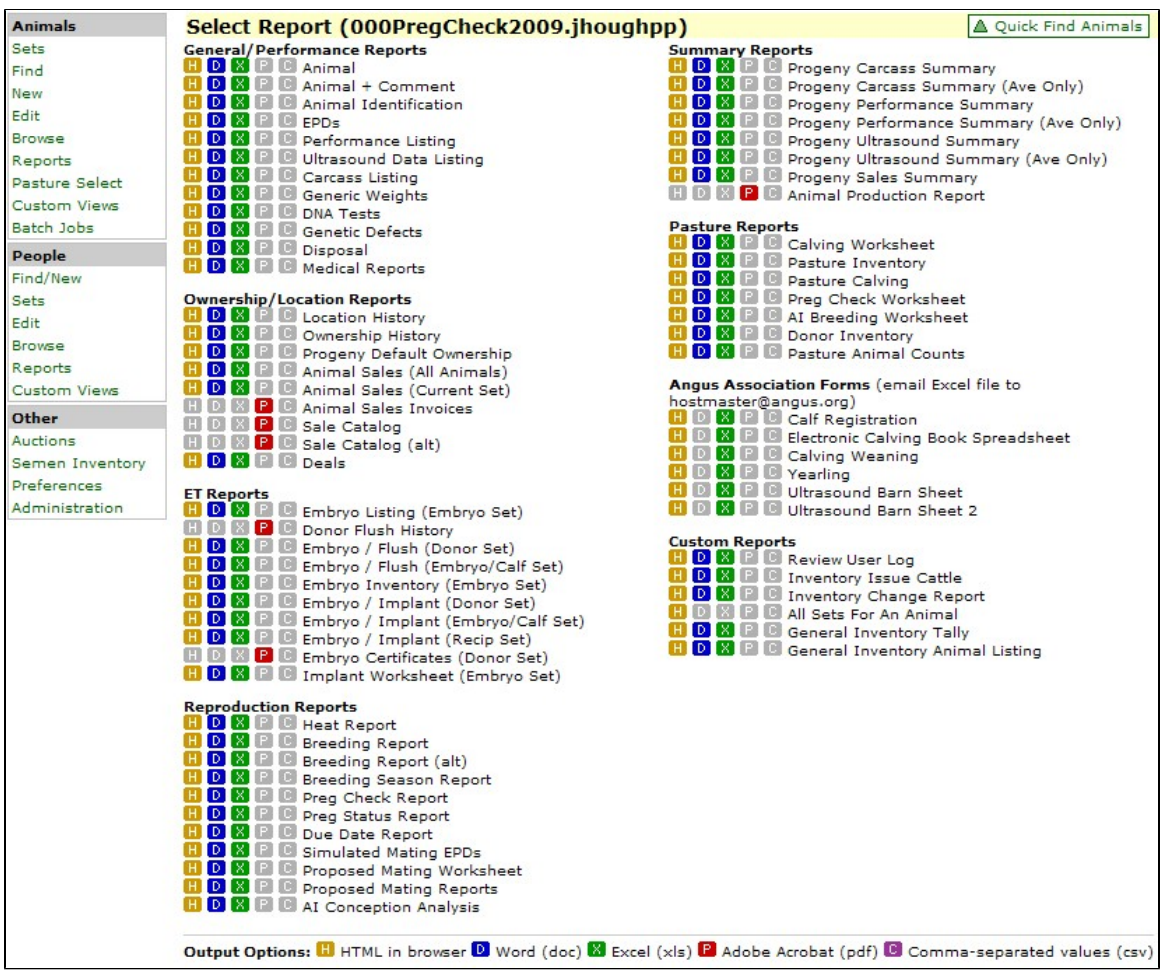
Animal Reports are where you report information on multiple animals at one time. Typically, animal on the report are those in your active animal set. Those reports that do not print your currently active set are so noted. There are five output options which you can output your report. Not all reports have all output options though. Only non-grayed-out (colored) options are available for a given report.
Most Animal Reports are designed to fit on standard sized paper (either portrait or landscape).

Click on the colored-letter icon to print a specific report. All reports can be output to paper, but usually it is the HTML and PDF output types that are best suited for paper. These five Output Options include:
- HTML in browser: Creates a pop-up window in your browser (Firefox, Flock, Chrome, Internet Explorer, etc.). From this pop-up window you can review the report then close it or physically print it to paper. An HTML report will fit the size of window it is given. The larger the window, the less "row wrapping" will occur. You can vary the size of your report window to see how the column and rows sizes change dynamically.
- Word (doc): Creates a Microsoft Word Document which you can open directly with Word or save to your hard drive. This file is then editable, but any changes will not be saved in GEM.
- Excel (xls): Creates a Microsoft Excel Document which you can open directly with Excel or save to your hard drive. This file is then editable, but any changes will not be saved in GEM.
- Adobe Acrobat (pdf): Creates an Adobe Acrobat file which you can open directly with Acrobat Reader and save to your hard drive. This file type is usually reserved for more complicated report formats such as sale catalogs or invoices. This file is only editable, but only with Adobe Photoshop or a similar program.
- Comma-separated values (csv): Comma-separated (actually in some cases these are tab-delimited and sometimes space-delimited or fixed format) files are generally used to send specific data to your breed association. You should save this file type directly to your hard drive from this report line. Then you email the file to your association. You can look at these files with Microsoft Notepad or Wordpad, but should never save the file after opening it. Generally, these files are very difficult to understand, since they are designed to be opened by a computer at your association.
Nearly all GEM HTML animal reports can be sorted by clicking on the column heading to sort ascending and clicking a second time to sort descending. You can also sort by multiple columns by clicking first one column heading then another. For example, you wish to sort you animal list by sex then birth date within sex. You would first click on the birth date column, then secondly click on the sex column. Thus, you would click the columns in the reverse order you wish to sort.
The overall design or usage of animal reports are nearly identical to people reports.
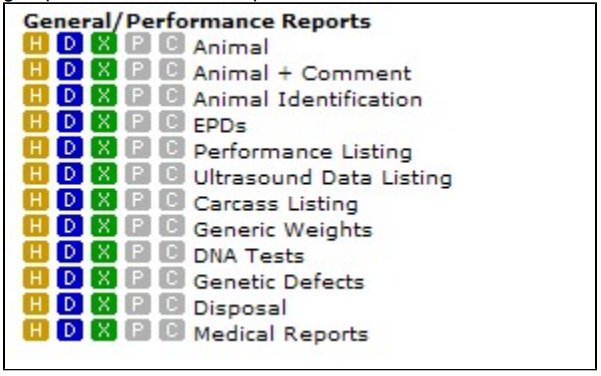
General-Performance Reports
The General/Performance Reports section contains animal reports that would be used on a daily basis. The report name describes the general group of information the report contains.
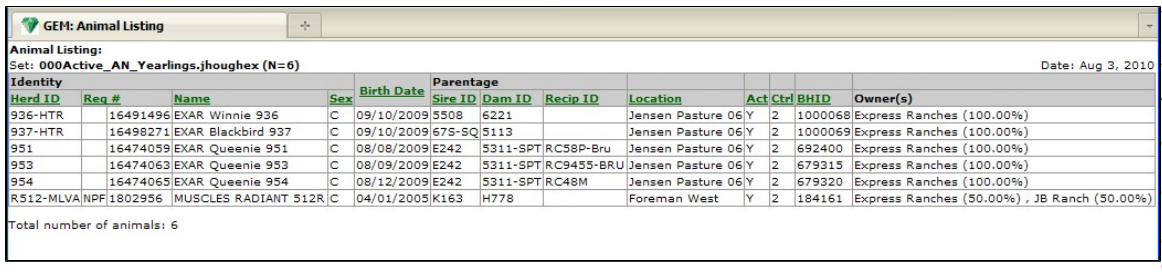
Animal Report
The Animal Report is probably the most often used report in GEM. It shows general descriptive information about the animals in your set.
Click on any of the green column headings to sort on that column. Ctrl is the GEM ID of the controller of that animal. BHID is the number in which GEM keeps track of all animals.
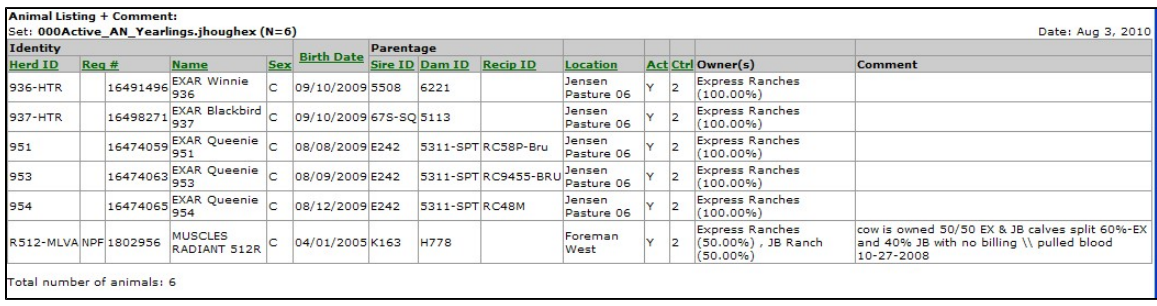
Animal + Comment Report
The Animal + Comment Report is very similar to the Animal Report. The report contains animal descriptive information plus the animal's main comment column. The main animal comment can be added and edited via the Base Animal Edit Screen.
Animal Identification Report
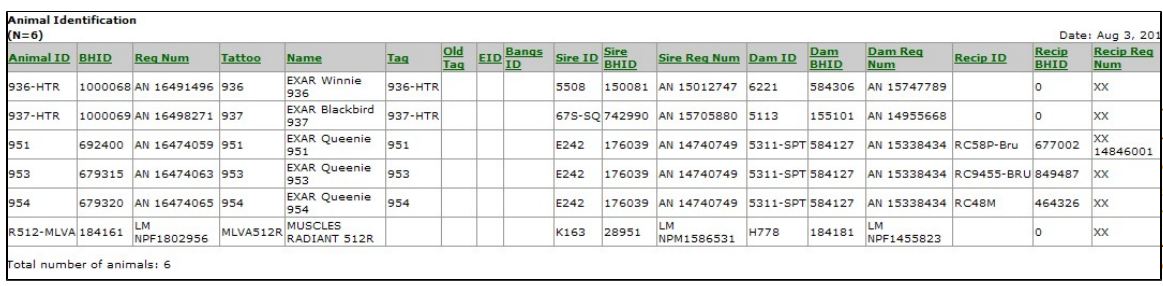
An animal can have lots of different forms of identification. The Animal Identification Report lists most of the main forms of identification for an animal.
EPDs Reports
There are several types of EPD Reports, depending on what specific information you wish to report. After you click the H, D or X link, you will get an intermediate pop-up window. In this popup window, you need to choose your breed association and the type of EPD Report you wish to see. Since all breeds have a slightly different set of EPDs, you must first choose the association. Your default breed will be the default association for this report.
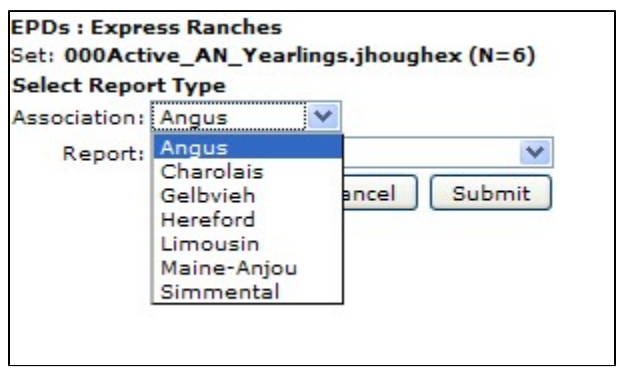
Secondly, you must choose the type of EPD Report you wish to print:
- EPDs Only
- EPDs & Acc: EPDs plus Accuracy values.
- EPDs, Acc & Pctl: EPDs plus Accuracy values plus Percentile Breakdown Level.
- EPDs (GEM Pedigree Estimates): Average of the sire and dam's EPDs when Association EPDs are missing.
- EPD Change: Current and prior EPDs and their difference.
EPDs Only Report
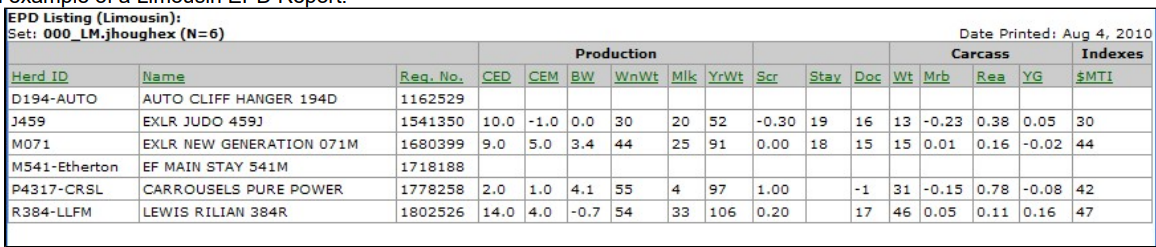
The EPDs Only Report prints one line per animal with EPDs utilized by the association you chose.
Below is an example of a Angus EPD Report.

Below is an example of a Limousin EPD Report.
EPDs & Acc Report
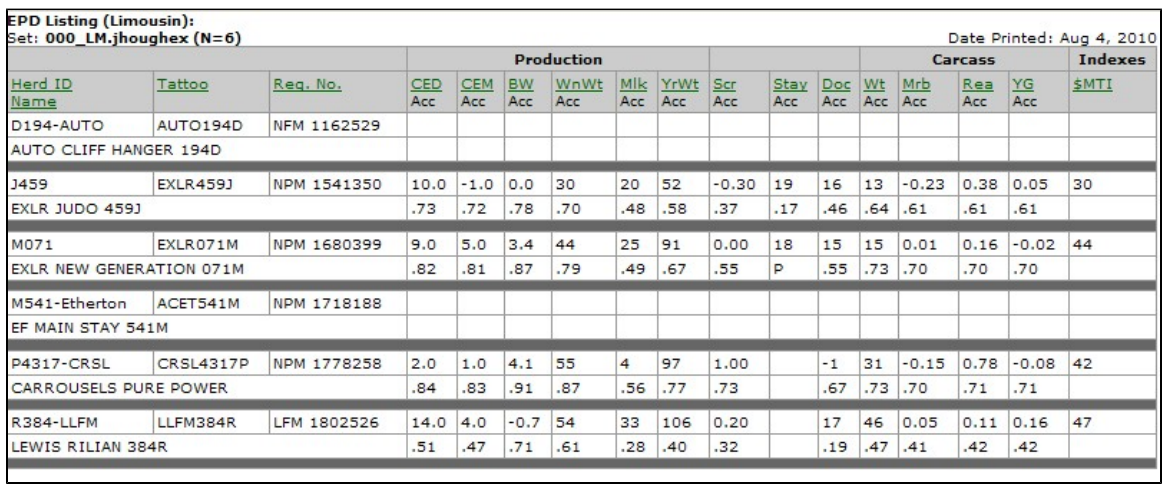
The EPDs & Acc Report lists information on two lines per animal. All columns are sortable, except accuracy values.
EPDs, Acc & Pctl Report
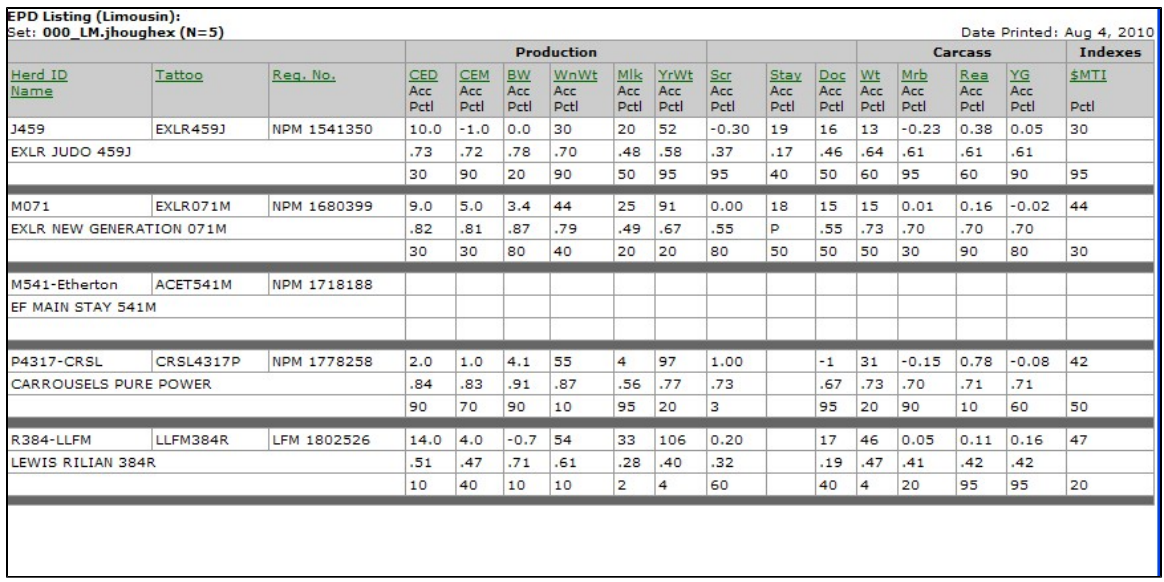
The EPDs, Acc & Pctl Report prints EPDs and Accuracy values and Percentile Breakdown Levels on a three-line per animal report. Percentile Breakdown Levels are generated by each association and indicate the animal's relative rank in it's population. All columns are sortable except accuracy and percentile breakdown levels.
EPDs (GEM Pedigree Estimates) Report
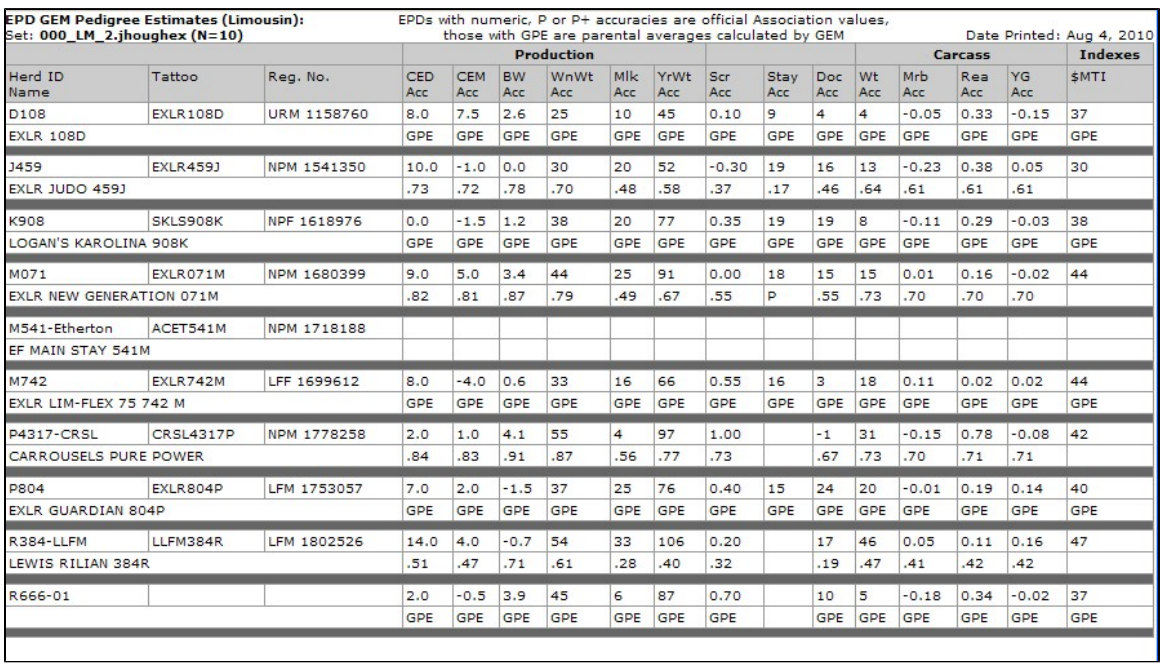
The EPDs (GEM Pedigree Estimates) Report is a two-line per animal report. A GEM Pedigree Estimate is the average of the sire and dam's EPDs and is only calculated when Association EPDs are missing.
EPDs with numeric, P or P+ accuracies are official Association values, while those with a GPE accuracy are parental averages calculated by GEM. GEM Pedigree Estimates are official association EPDs. If one or both parent's EPD is missing, a GEM Pedigree Estimate can not be not calculated. In some cases, an animal can have an association EPD (numeric, P or P+ accuracy) for one trait and a GEM Pedigree Estimate (GPE accuracy) for another.
Because of the report design, columns are not sortable.
EPD Change Report
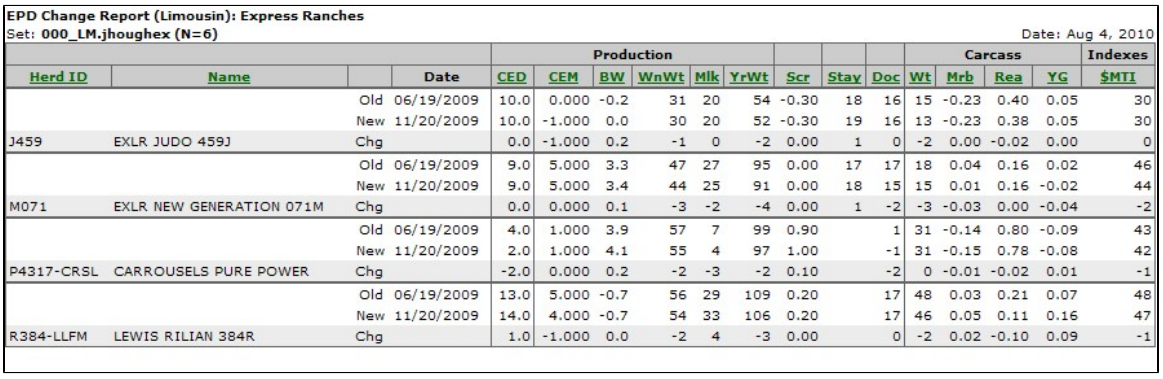
The EPD Change Report prints Current and Prior EPDs and their difference. Prior EPDs are those generated in a previous genetic analysis by your breed association. If either a current or prior EPD does not exist, no change can be calculated.
Beginning in August 2010, GEM has started storing multiple "generations" of prior EPDs. This means, for example, both last year's Spring and Fall EPDs are stored or actually any time an EPD is changed in GEM. It is possible an older animal would have several generations of prior EPDs. Also, the Angus Association will soon begin calculating new EPDs on a weekly basis. If you download new EPDs from AAA every single week, it is possible to have 52 prior Angus EPDs for a given year.
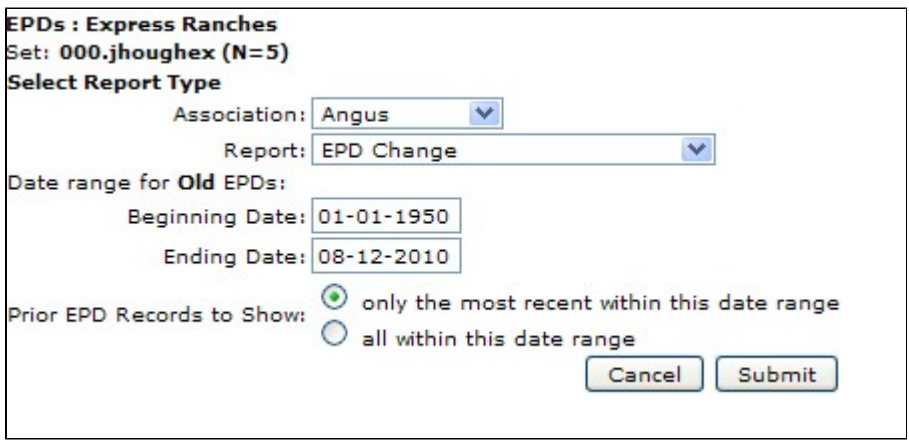
The intermediate screen for EPD Change allows you to choose the date range of the prior EPDs you want to compare.
All columns are sortable. When you click and EPD column, the difference (change) between current and prior EPDs is what is used to sort.
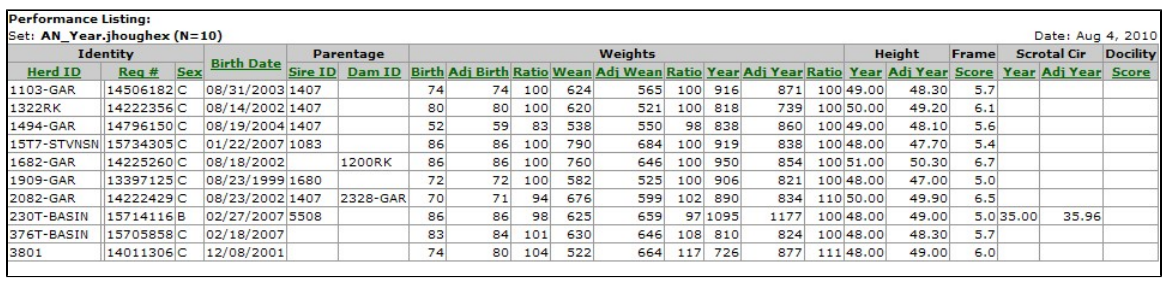
Performance Listing
The Performance Listing Report lists Actual, Adjusted and Ratios for the most common performance measurements.
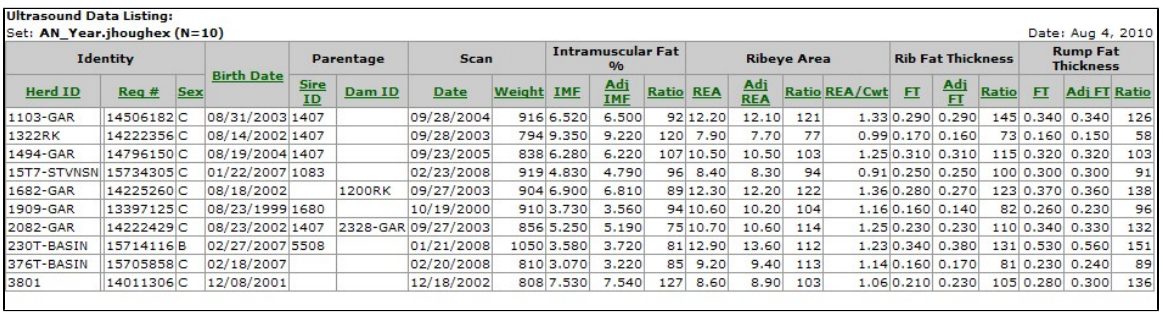
Ultrasound Data Listing
The Ultrasound Data Listing Report lists Actual, Adjusted Measurements and Ratios for Ultrasound carcass traits.
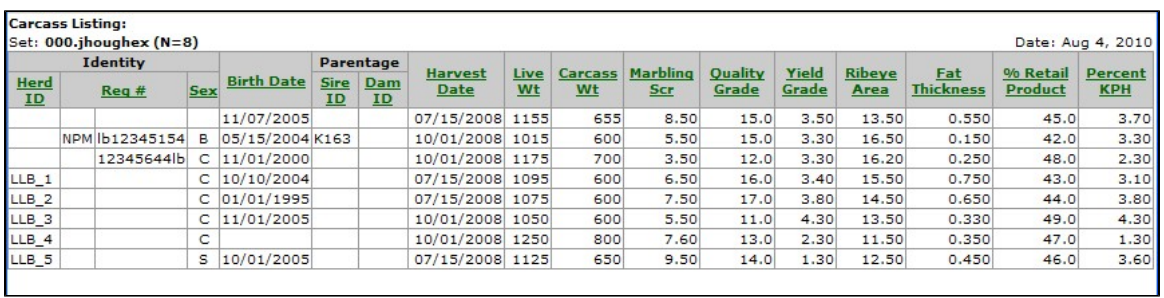
Carcass Listing
The Carcass Listing Report lists actual (packing plant) carcass data.
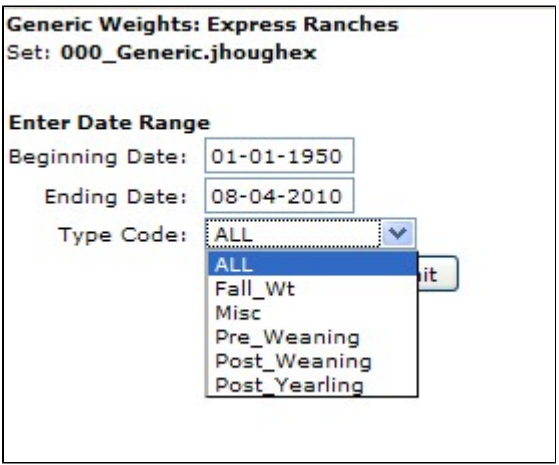
Generic Weights Report
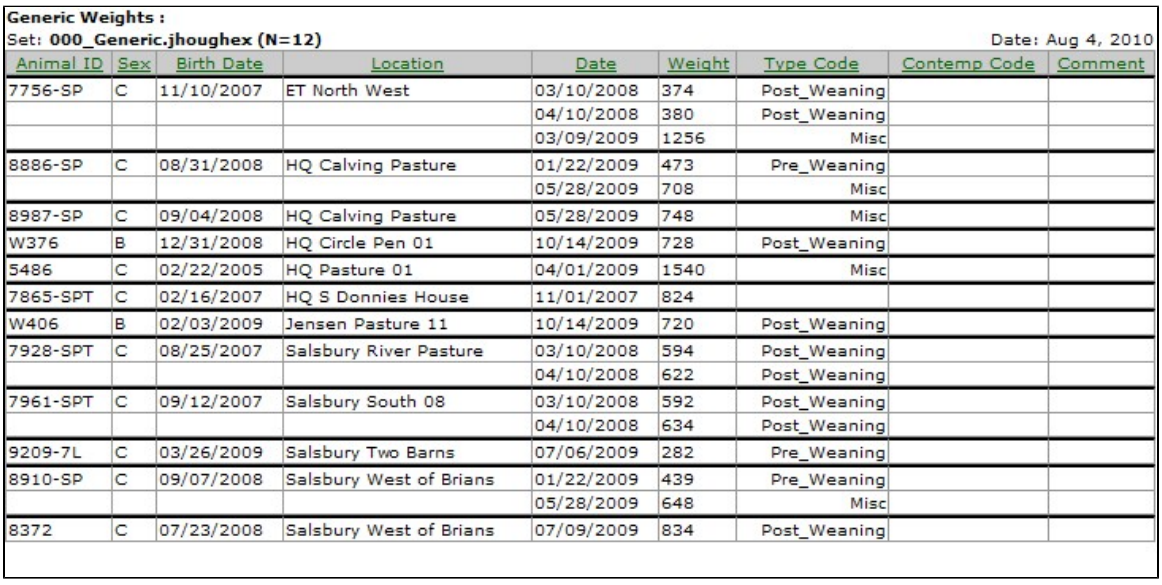
The Generic Weights Report Report lists weight data taken at non-standard times (not Birth, Weaning or Yearling). In the intermediate screen for this report, you can choose a date range for when the weights were taken and the categories of the trait. Categories include Fall Weight, Miscellaneous, Pre-Weaning, Post-Weaning, Post-Yearling and All.
This report can be sorted by any column. When sorting by Animal ID (default), Sex, Birth Date or Location, that information not repeated on the left-hand half of the report.
DNA Tests Report
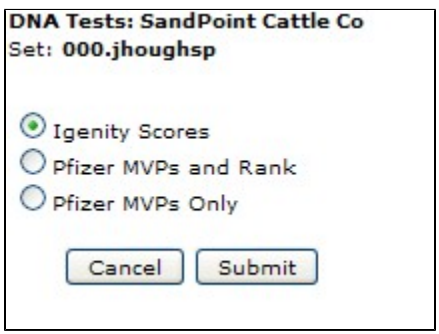
DNA Tests Reports are divided into three different reports as the choices indicate. Currently, data comes from two independent DNA labs, so the information and reports are also independent.
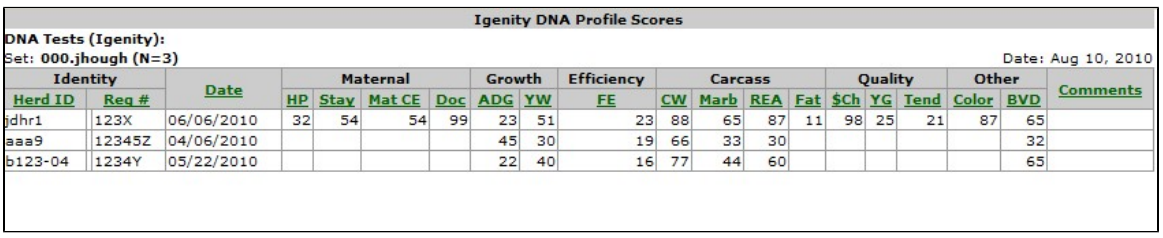
Igenity Scores
This is the one-line per animal Igenity Profile Scores Report.
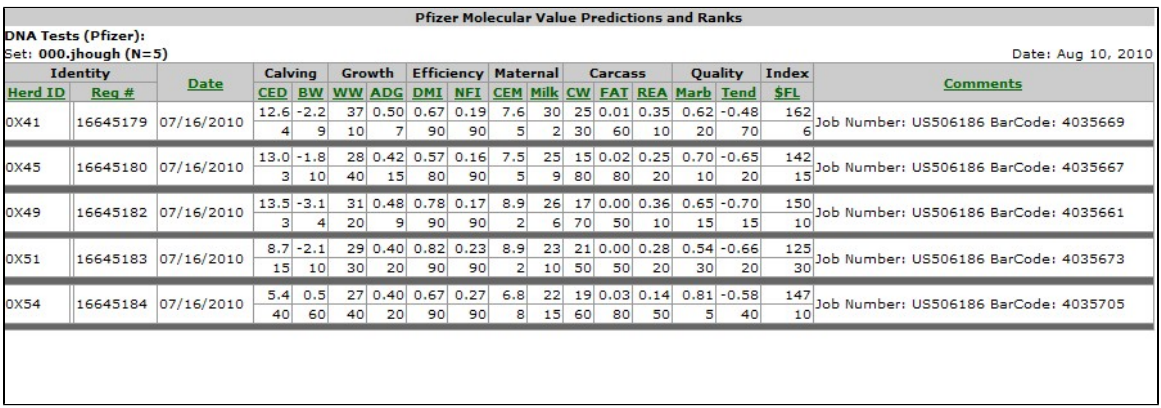
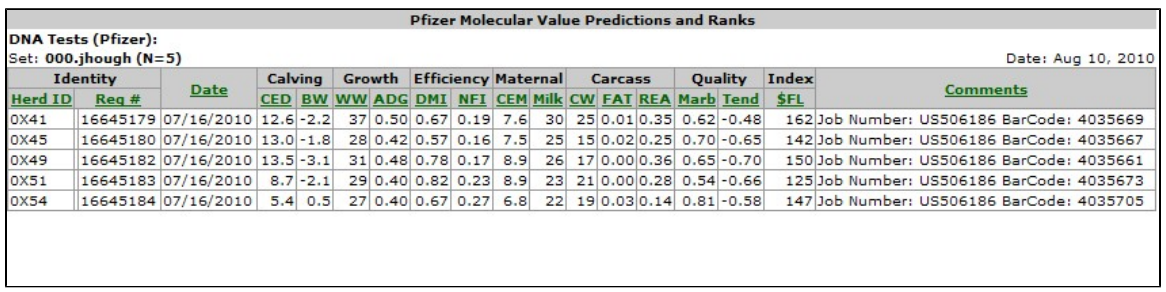
Pfizer MVPs and Rank
This is the two-lines per animal Pfizer MVPs and Rank Report.
Pfizer MVPs Only
This is the one-line per animal Pfizer MVPs Only Report (no Rank values are listed).
Genetic Defects Report
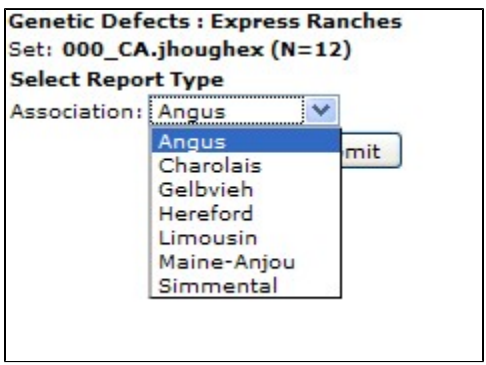
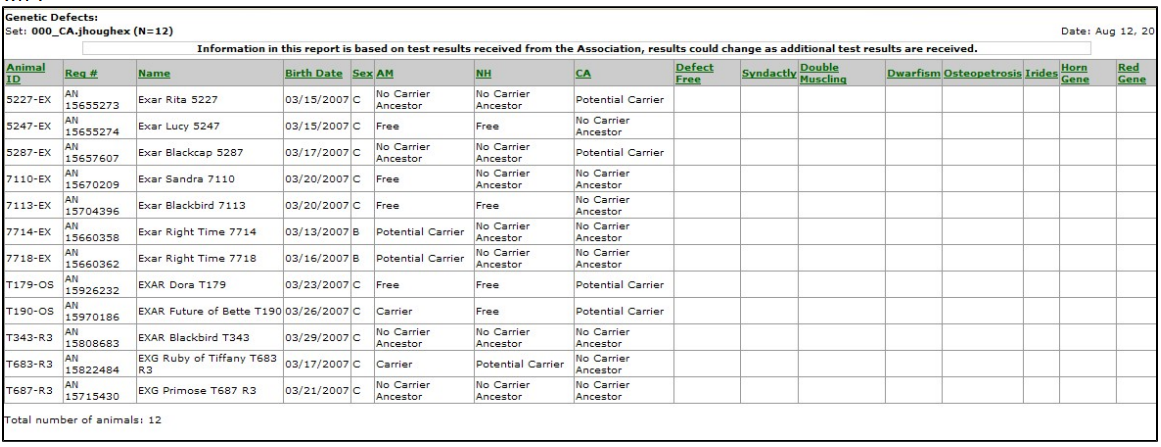
The Genetic Defects Report lists the defect status of a given set of genetic defects. Each breed association has a different set of genetic defects, thus you must choose the relative breed in the intermediate screen.
Most breed associations have a "Free" or "Carrier" status and others have additional status values of "No Carrier Ancestor", "Potential Carrier", and "Unknown".
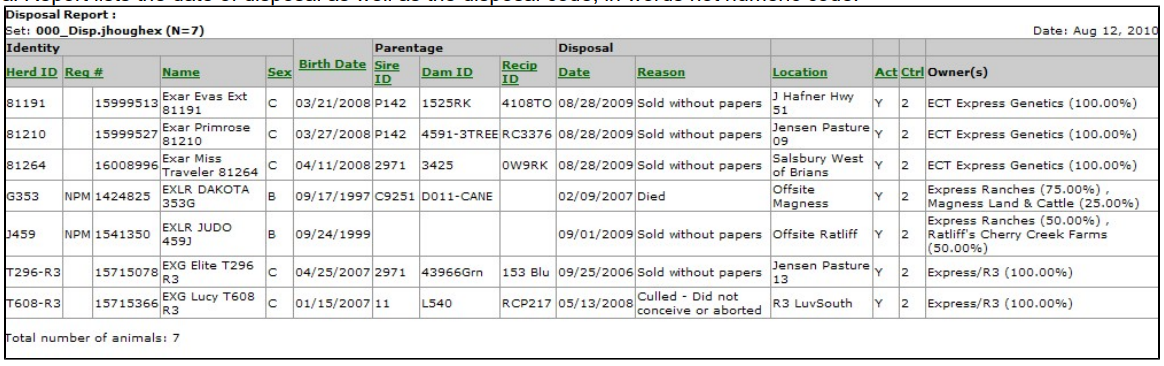
Disposal Report
The Disposal Report lists the date of disposal as well as the disposal code, in words not numeric code.
Medical Report
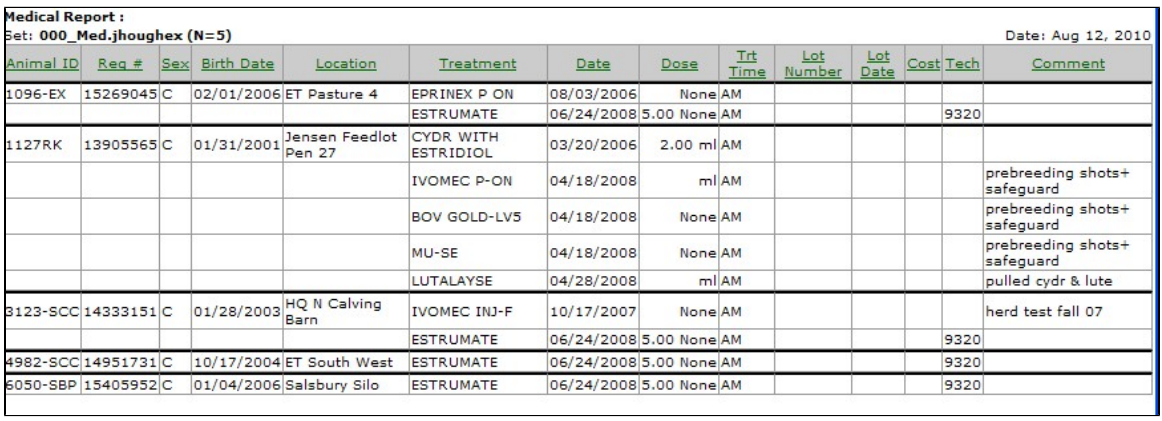
The Medical Report lists all medical treatments within a given date range and for the treatment(s) you choose.
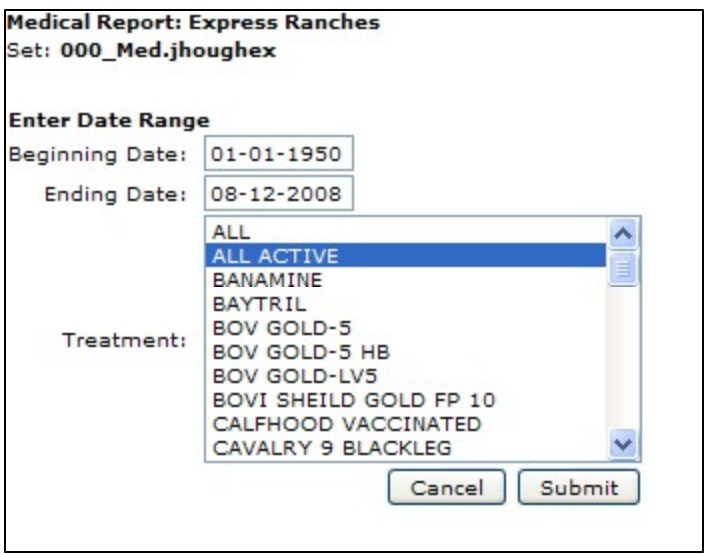
The intermediate screen allows you to choose the date range and treatment(s) you are interested in reporting. Note the treatment choice menu is a multiple choice drop down menu in which you can pick one or several treatments. You can use the Ctrl + Left Mouse click to pick and choose different treatments at random. To choose a group of treatments all together you can use Shift + Left Mouse Click.
Ownership-Location Reports
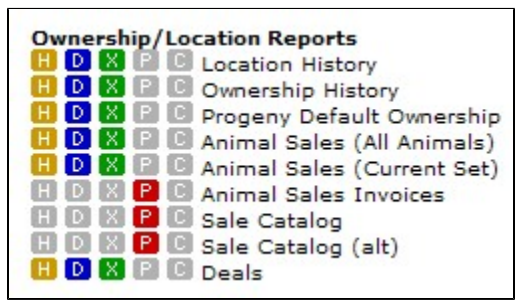
The Ownership / Location Reports section contains animal reports that would be used describing location or ownership information. The report name describes the general group of information the report contains.
In addition to being a report, the Animal Sales (All Animals) link also allows you to create both people and animal sets based on sales and purchase specifications.
Location History Report
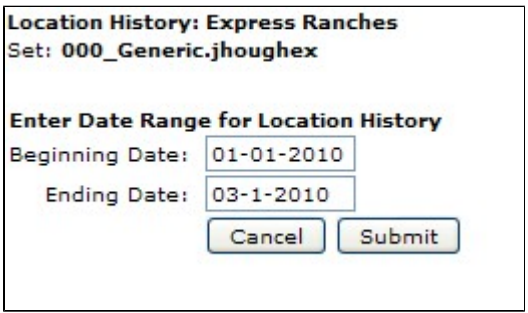
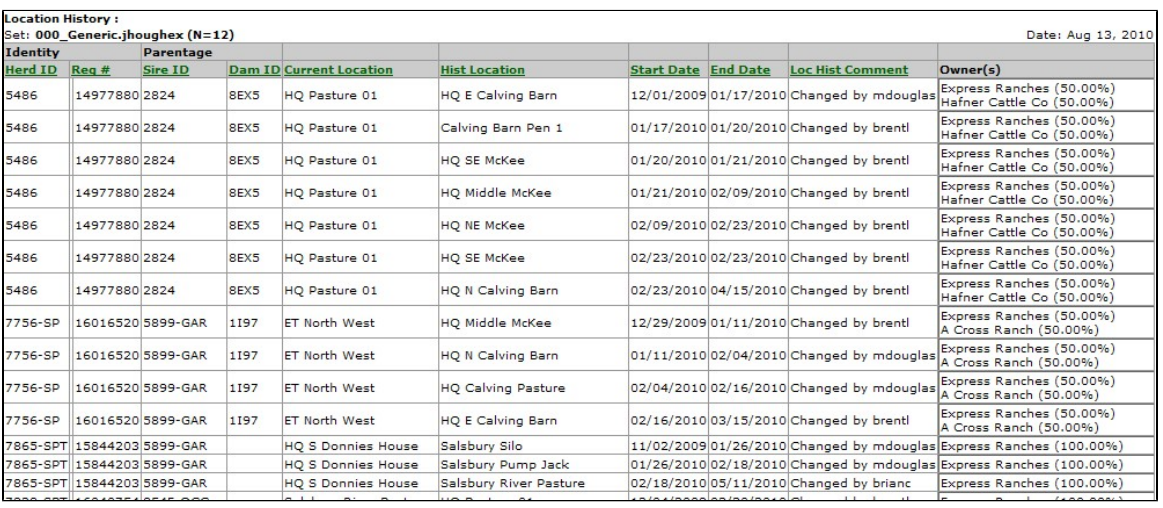
Via Batch jobs, GEM maintains every physical location an animal has been in it's entire lifetime. Actually in the case of animals resulting from embryo transfer, GEM even maintains the nitrogen tank locations prior to implantation when the animal was still a frozen embryo. The Location History Report lists all locations an animal has resided within a given date range. The majority of GEM reports show the current location for an animal, while this is the only report that shows the history.
Ownership History Report
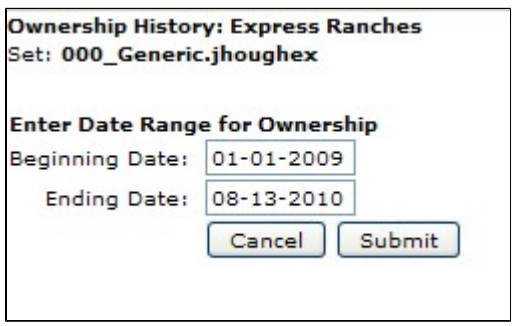
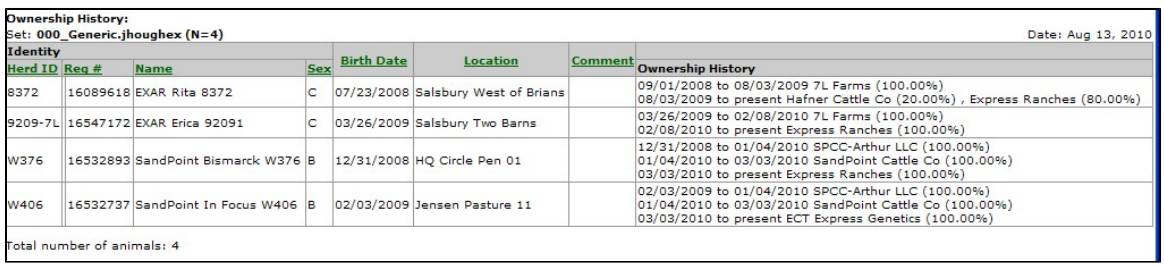
GEM not only maintains the current ownership of animals, but also a lifetime ownership history. The Ownership History Report lists all an animal's owners and ownership changes within a given date range. Many GEM reports show the current ownership for an animal, while this is the only report that shows the history.
Progeny Default Ownership Report
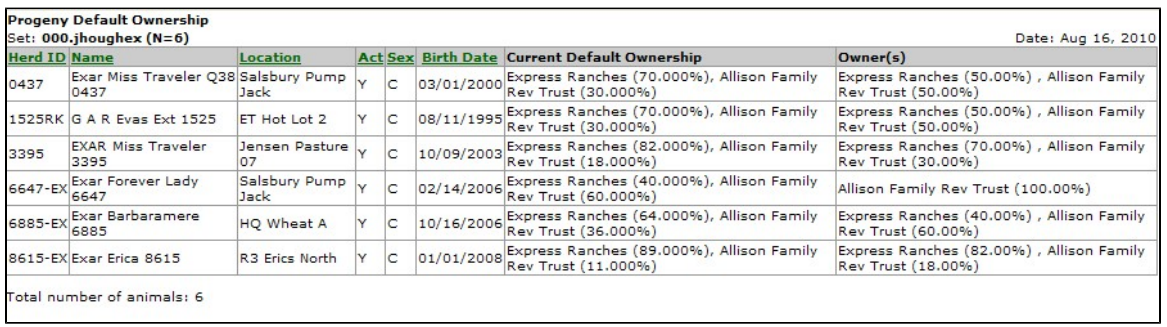
Via the Batch Animal Edit Screen, , you can assign default ownership of future calves and embryos when different Default Progeny Ownerships than the ownership of the dam. If you want the future calf / embryo ownership to default to the ownership of the dam, there is no need to do anything there, since "normal" default ownership of newly entered calves and embryos is the ownership of the dam.
The Progeny Default Ownership Report simply lists the current values you have entered for Progeny Default Ownership.
Animal Sales (All Animals) Report
The Animal Sales (All Animals) Report is not only a report but serves a host of other purposes. Note that this report is totally independent of your current set. In addition to being a report, the Animal Sales (All Animals) screen also allows you to create both people and animal sets based on sales and / or purchase specifications. Animal sales and purchases data is the most secure portion of the GEM database. Because of these security issues, you can not build animal or people sets in the normal animal sets or people sets building screens. There are only two places in GEM to build sets based on sales data. They are this screen, the Animal Sales (All Animals) Report screen and also the Animal Sales Invoices Report screen.
Security in GEM keeps you from viewing sales information you are not at liberty to see. In order to see a sale / purchase record, one of these three criteria must be met:
- You are the buyer.
- You are the seller.
- You hosted the sale (i.e., you entered the sale record into GEM via an auction or private treaty sale).
To create a list of all buyers, enter the seller's GEM ID. You can leave this blank to get a list of all sellers.
Likewise, to create a list of all buyers, enter the buyer's GEM ID. You can leave this blank to get a list of all buyers. Buying or Selling animals or getting a Sales report or a Purchase report are virtually the same thing. If "You" are the seller, then it is a animal sale. If "You" are the buyer, then it is a purchase.
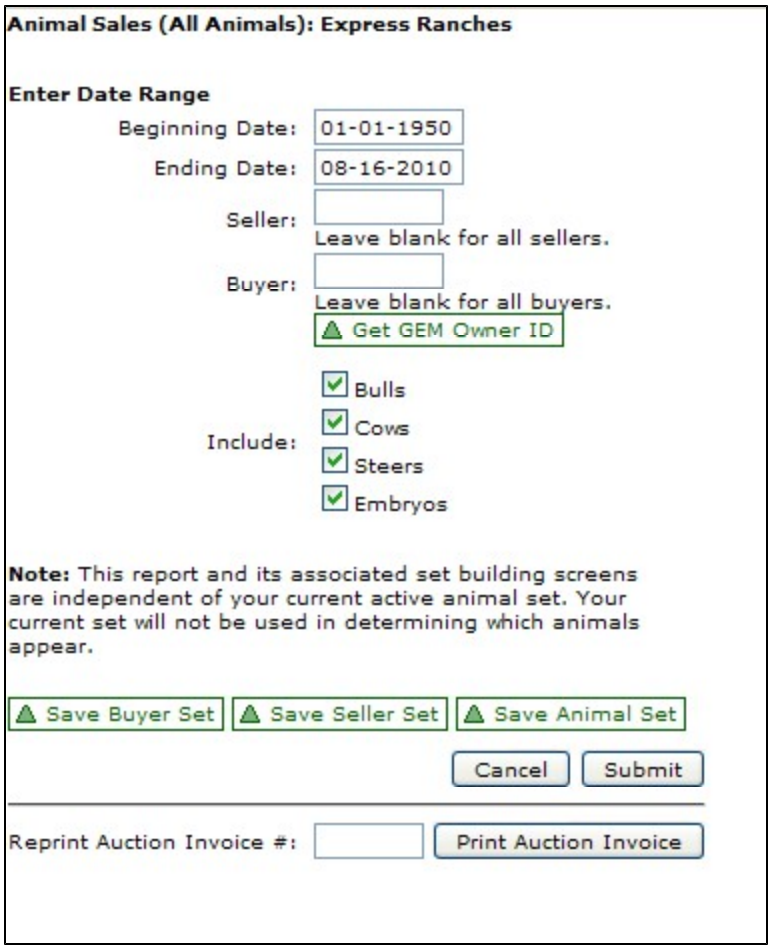
After you have the specs entered for date range, Buyer ID, Seller ID and sexes to include, you have 4 choices on forms of output.
Save Buyer Set: Allows you to create a People Set with the list of buyers in the report. Generally, these are people you have sold cattle to where you have entered your GEM ID in the Seller box and left the Buyer box blank.
Save Seller Set: Allows you to create a People Set with the list of sellers in the report. Generally, these are people you have bought cattle from where you have left the Seller box blank and entered your GEM ID in the Buyer box.
Save Animal Set: Allows you to create an Animal Set with the list of animals in the report. These are the cattle you have either bought or sold, depending on what GEM IDs you entered in the Seller or Buyer boxes.
Submit: Prints the report based on your specifications.
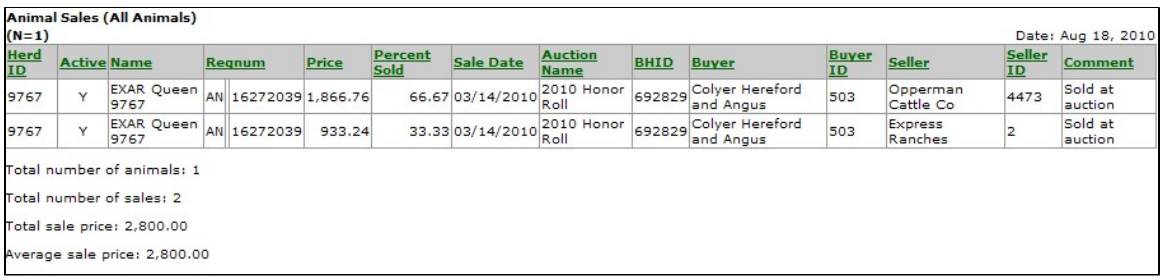
This is an example Animal Sales Report.
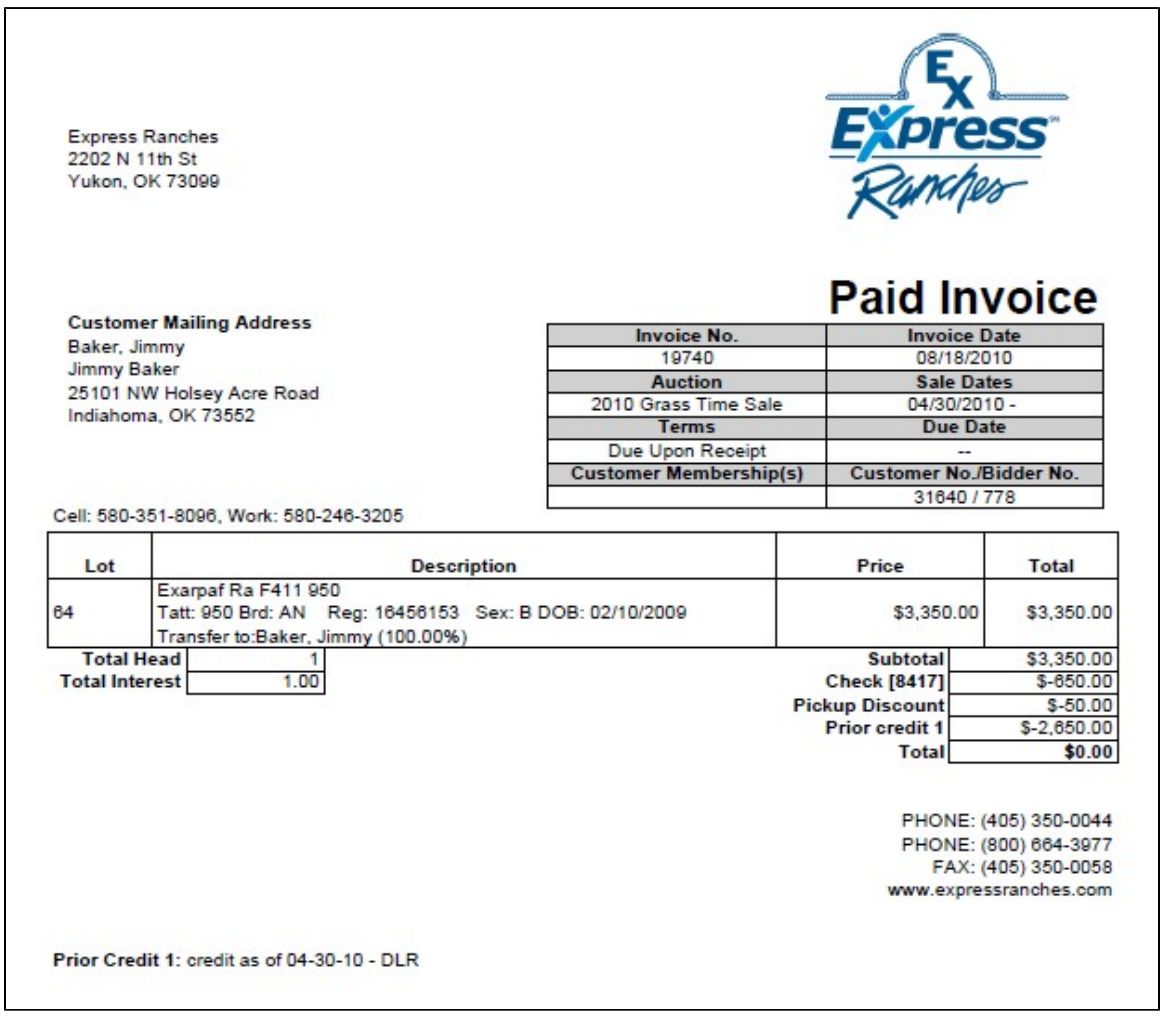
At the very bottom of the screen is a button called Print Auction Invoice. This simply allows you to reprint an Auction Invoice without having to go to the Auction portion of GEM. This invoice is independent of the information you entered above on the screen. It simply reprints the invoice you give it.
Animal Sales (Current Set) Report
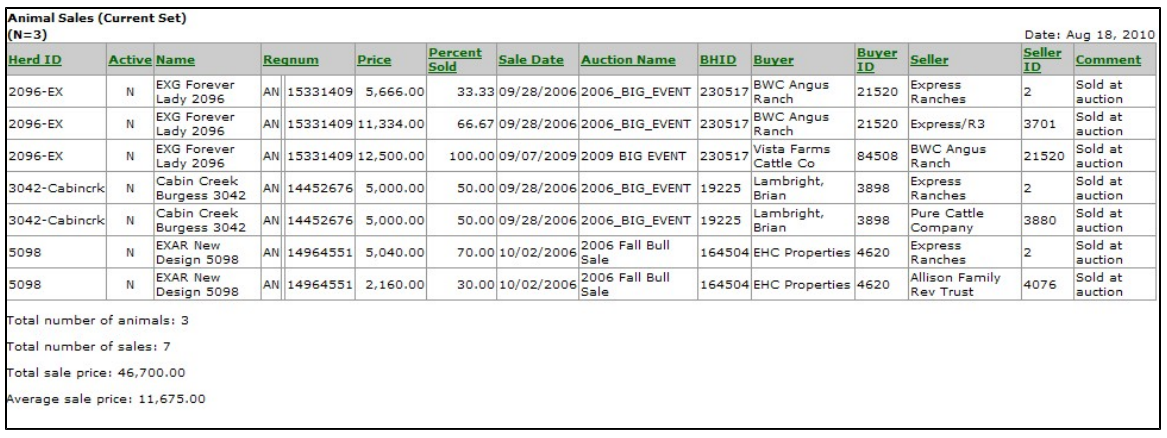
Animal Sales (Current Set) Report prints any sales or purchase records associated with animals in your current set. Security in GEM keeps you from viewing sales information you are not at liberty to see. In order to see a sale / purchase record, one the these three criteria must be met:
- You are the buyer.
- You are the seller.
- You hosted the sale (i.e., you entered the sale record into GEM via an auction or private treaty sale).
Animal Sales Invoices Report
The is very similar to the Animal Sales (All Animals) screen.
The Animal Sales Invoices Report is not only a report but serves a host of other purposes. Note that this report is totally independent of your current set. In addition to being a report, the Animal Sales Invoices Report screen also allows you to create both people and animal sets based on sales and / or purchase specifications. Animal sales and purchases data is the most secure portion of the GEM database. Because of these security issues, you can not build animal or people sets in the normal animal sets or people sets building screens. There are only two places in GEM to build sets based on sales data. They are this screen, the Animal Sales Invoices Report screen and also the Animal Sales (All Animals) screen.
Security in GEM keeps you from viewing sales information you are not at liberty to see. In order to see a sale / purchase record, one the these three criteria must be met:
- You are the buyer.
- You are the seller.
- You hosted the sale (i.e., you entered the sale record into GEM via an auction or private treaty sale).
To create a list of all buyers, enter the seller's GEM ID. You can leave this blank to get a list of all sellers.
Likewise, to create a list of all buyers, enter the buyer's GEM ID. You can leave this blank to get a list of all buyers.
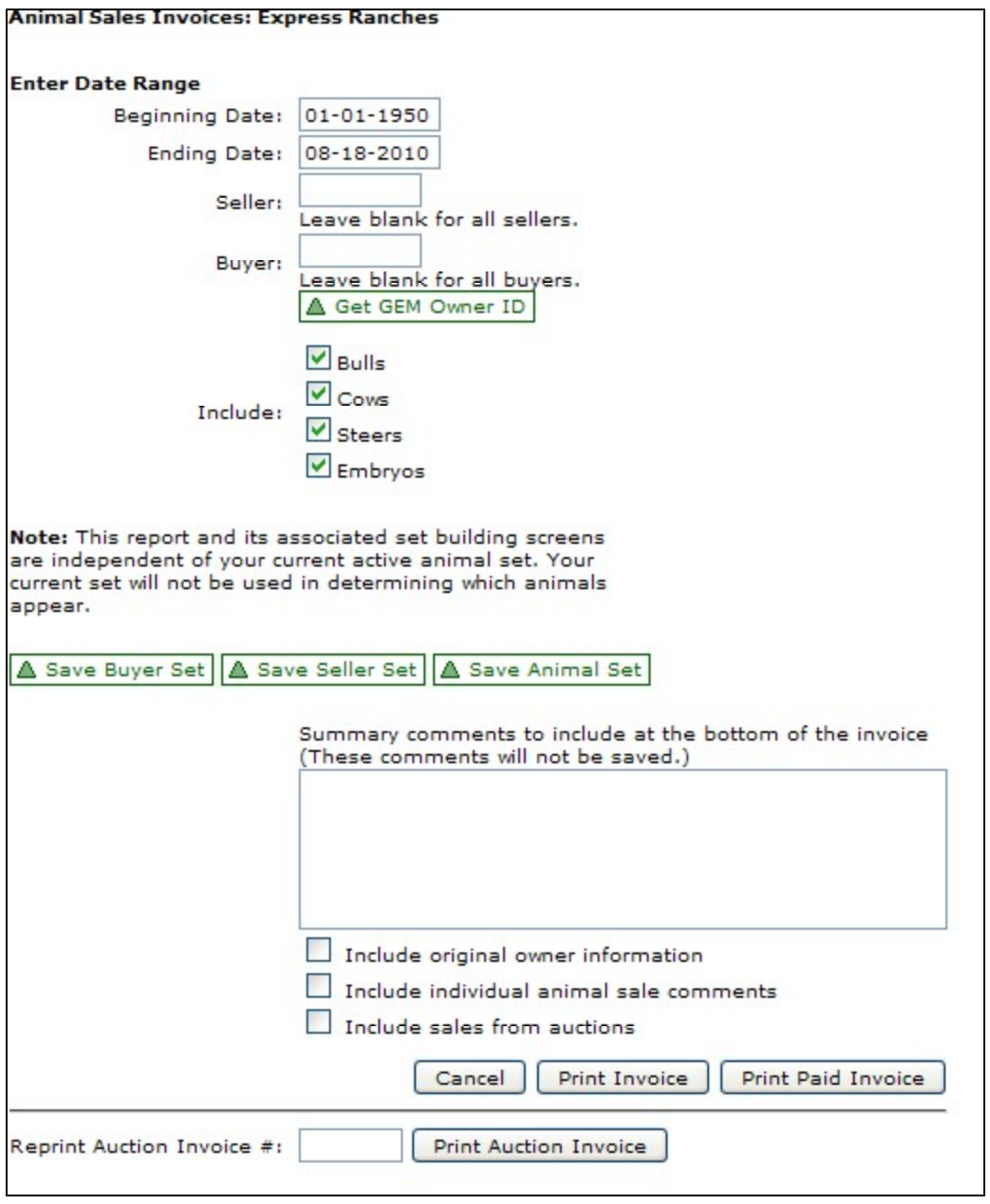
After you have the specs entered for date range, Buyer ID, Seller ID, and sexes to include, you have four choices for output:
- Save Buyer Set: Allows you to create a People Set with the list of buyers in the report. Generally, these are people you have sold cattle to where you have entered your GEM ID in the Seller box and left the Buyer box blank.
- Save Seller Set: Allows you to create a People Set with the list of sellers in the report. Generally, these are people you have bought cattle from where you have left the Seller box blank and entered your GEM ID in the Buyer box.
- Save Animal Set: Allows you to create an Animal Set with the list of animals in the report. These are the cattle you have either bought or sold, depending on what GEM IDs you entered in the Seller or Buyer boxes.
When printing this PDF Sales Invoice, you have the option of adding your personalized Summary Comments to the report as well as including in the invoice:- Original owner information
- Individual animal sale comments
- Sales from auctions. When this box is not checked, you get only private treaty invoices. When this box is checked, you get both private treaty invoices and public auction invoices.
- Submit: Prints the PDF (Adobe Acrobat) Sales Invoice based on your specifications.
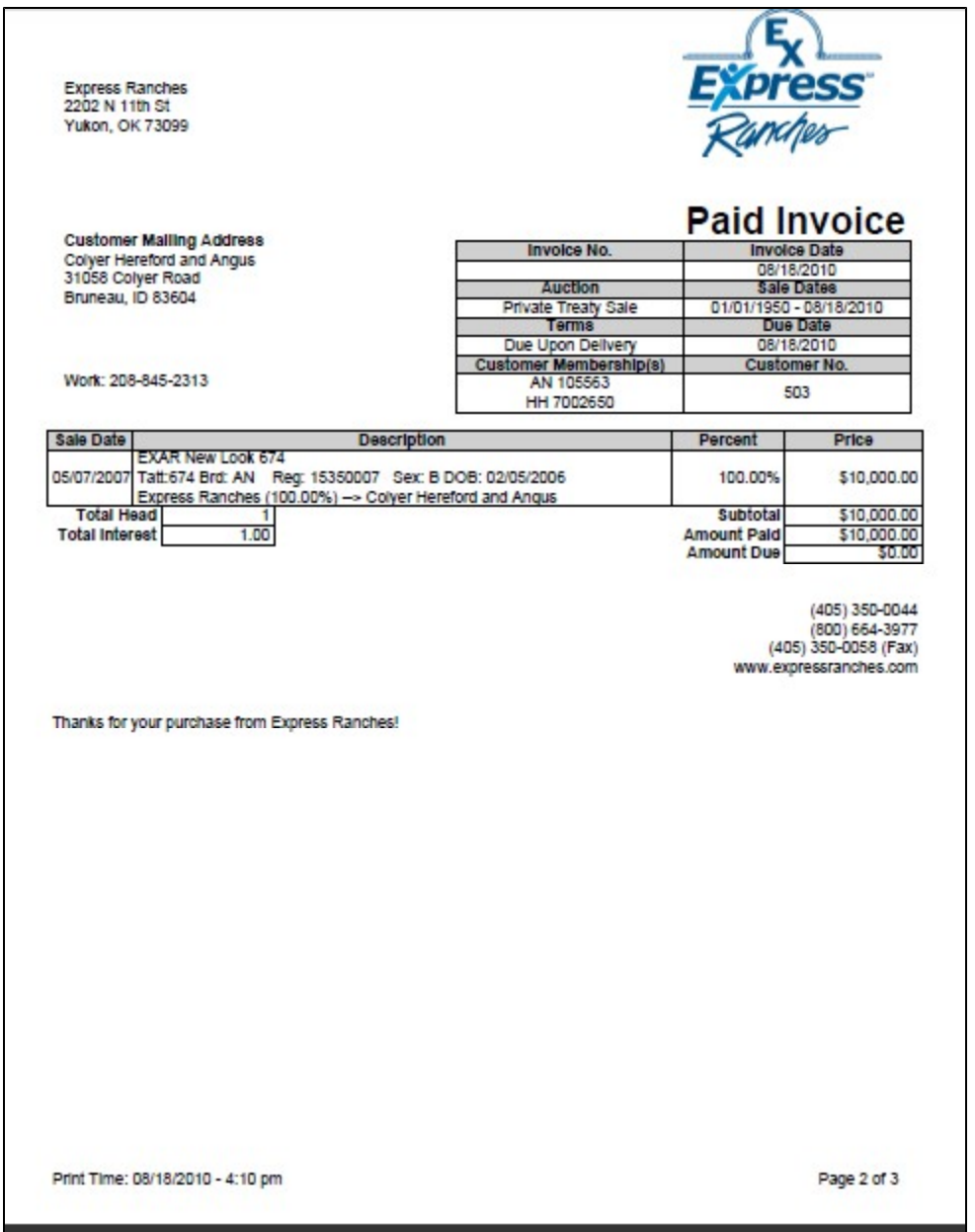
This is an example Animal Sales Invoices Report.
At the very bottom of the screen is a button called . This simply allows you to reprint an Auction Invoice without having to Print Auction Invoice go to the Auction portion of GEM. This invoice is independent of the information you entered above on the screen. It simply reprints the invoice you give it.
Sale Catalog Report
The Sale Catalog Report is one of the most useful reports in GEM. This can be used to print a report for your own internal use or for public use. This does not have to be used as a sale catalog, but it does work very nicely as a catalog for private treaty sales or a working version of your public auction. This works very well to show a host of information about an animal in a very compact form. This is only in a PDF (Adobe Acrobat) format.
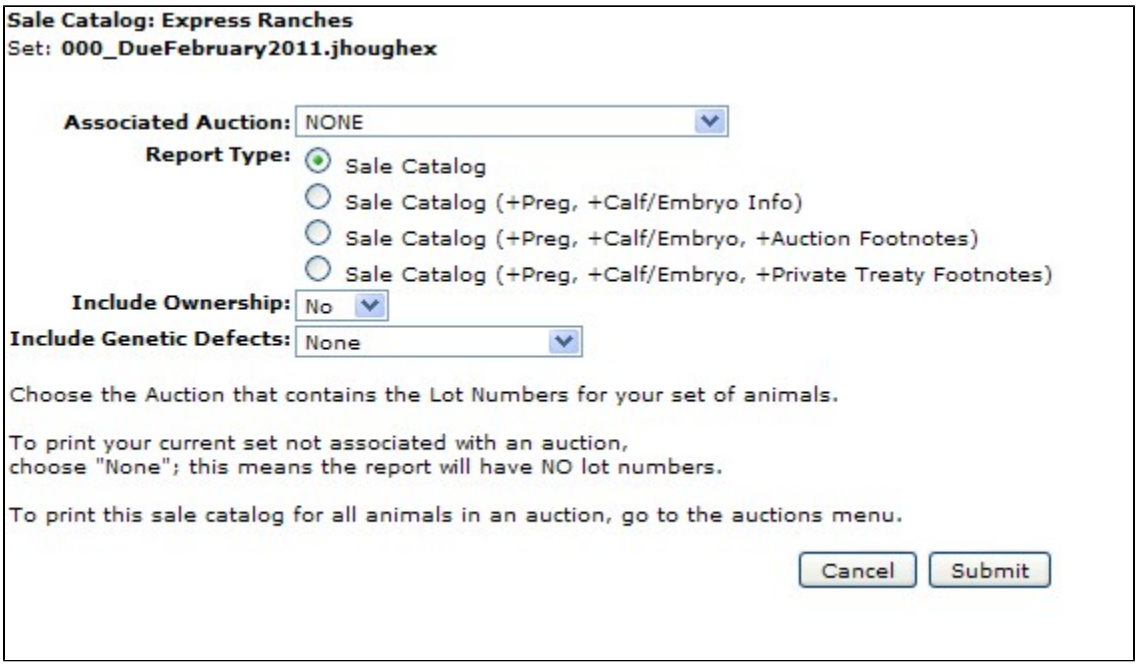
There are several options you can choose for the Sale Catalog Report.
This report automatically detects the breed association of the animal and prints EPDs pertinent to that breed.
Below is a sale catalog report with no associated auction, Report Type Sale Catalog (+Preg, +Calf/Embryo Info), Include Ownership = Yes and Include Genetic Defects = All Known Results. In this Sale Catalog Report and throughout GEM, when Pregnancy information is printed, a cow is considered pregnant only after she has been preg checked.
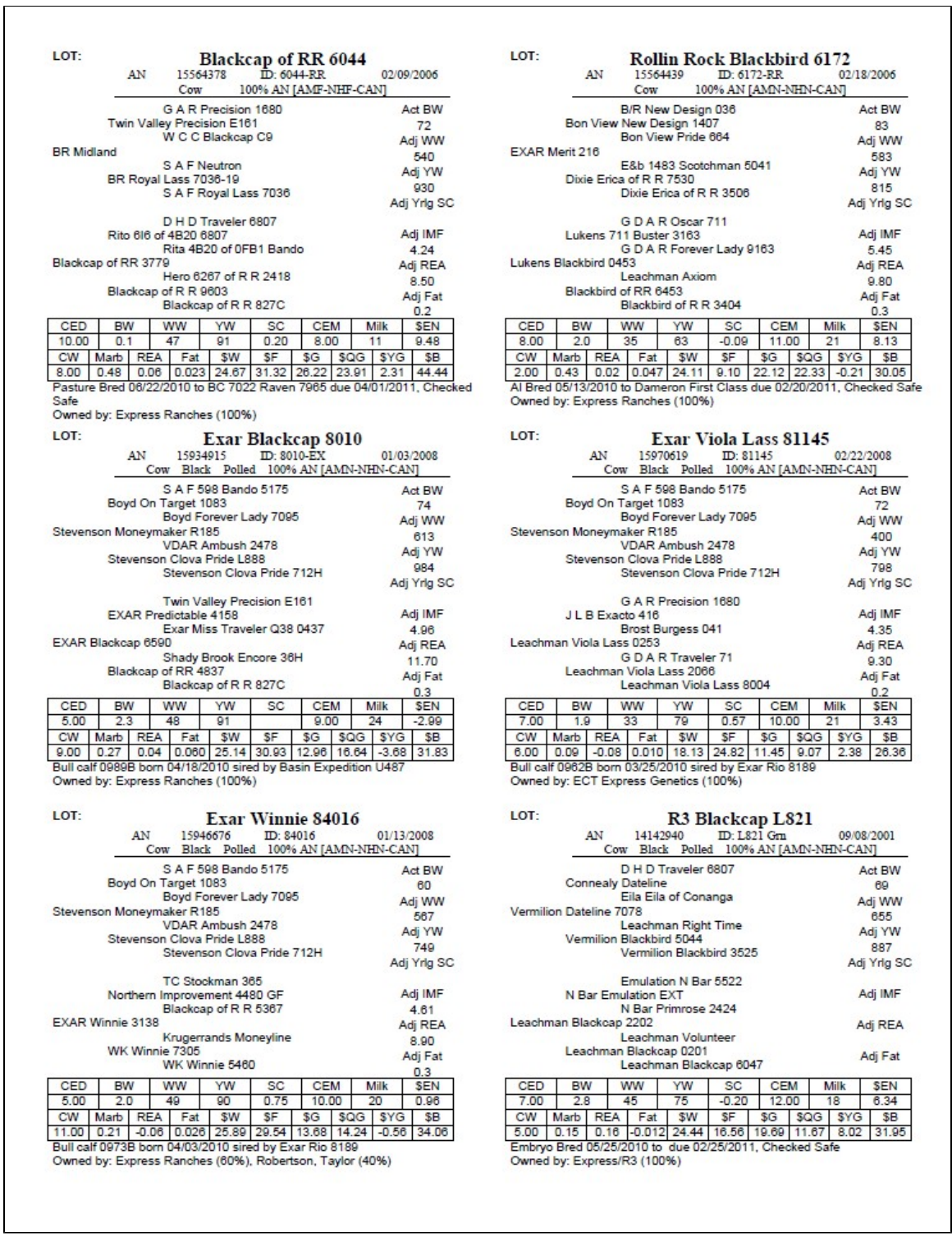
Below is a sale catalog report with an associated auction, Report Type Sale Catalog (+Preg, +Calf/Embryo, +Auction Footnotes). Whenever Footnotes are printed, this report goes from a 6-animal per page to a 4-animal per page format. Auction Lot Numbers and Footnotes are entered via the Auctions component in GEM. Private Treaty Footnotes can be entered via Private Animal Data, either in a single-animal edit mode or through the batch mode.
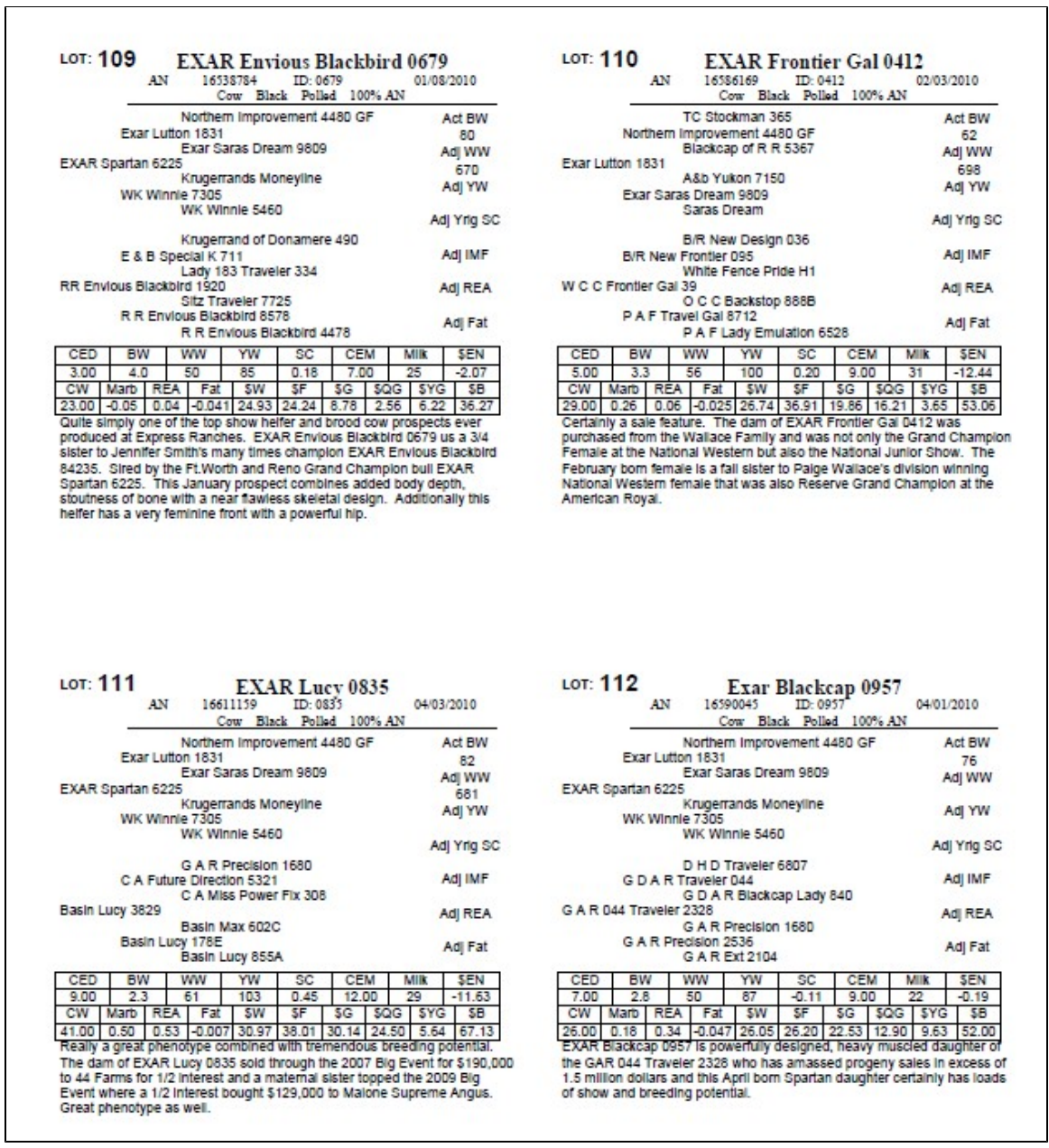
This report prints animals in you currently active set. To print a sale catalog for all animals in an auction, go to the auctions menu to do so.
Sale Catalog (alt) Report
The Sale Catalog (alt) Report is an alternative or variation of the original Sale Catalog Report. The Sale Catalog (alt) Report has the very same options as the Sale Catalog Report.
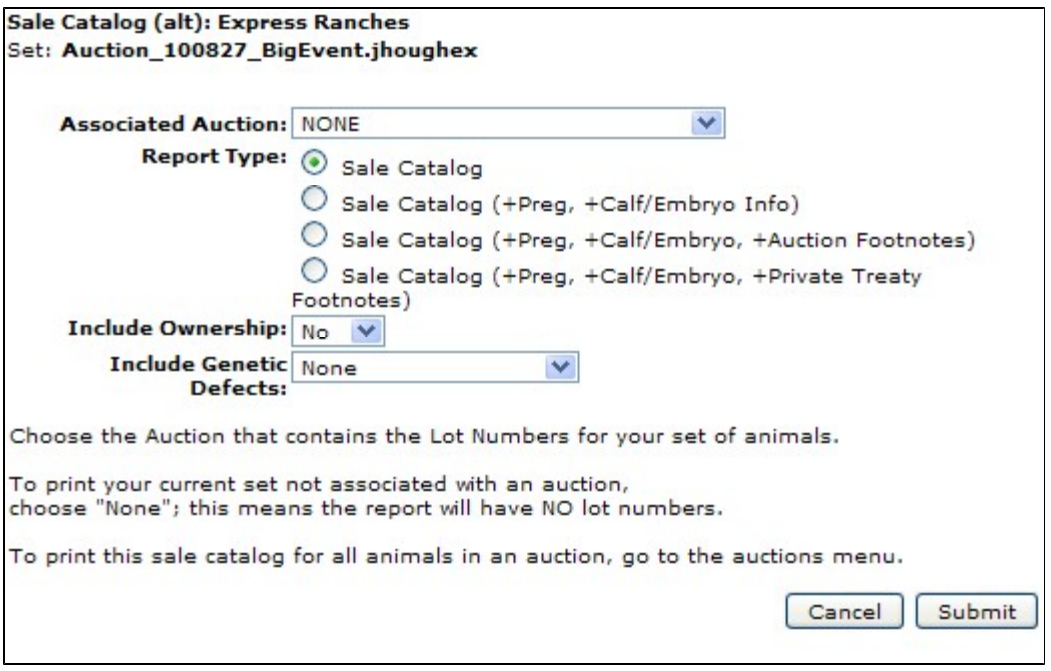
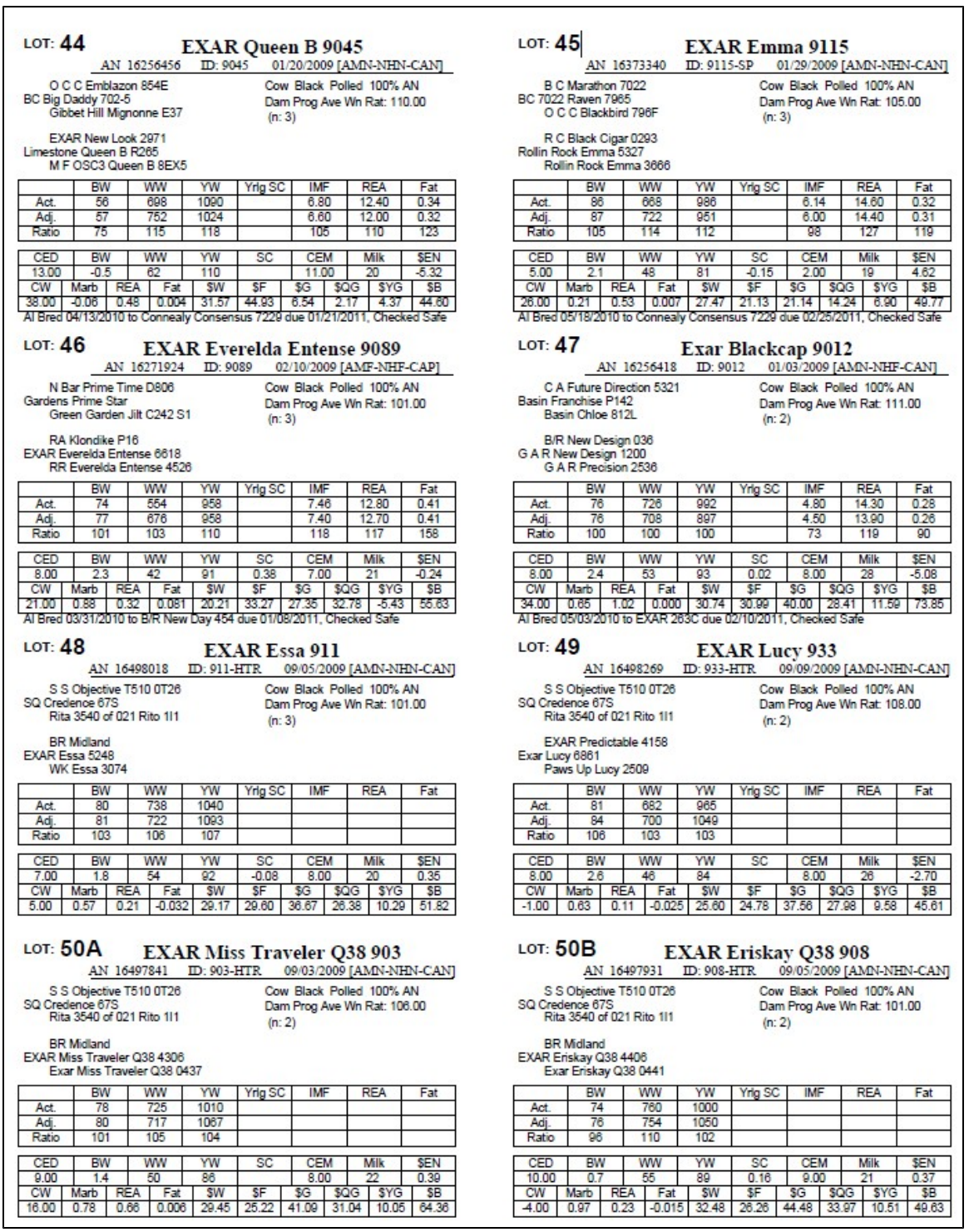
Compared to the original version of the Sale Catalog Report, the Alt version
- has 8 not 6 animals per page (with the non-footnotes option)
- shows 2 not 3 generations of pedigree
- shows the dam's average weaning ratio and number of calves making up that ratio
- shows not only adjusted measurements, but also actual and ratios for several performance traits.
Deals Report
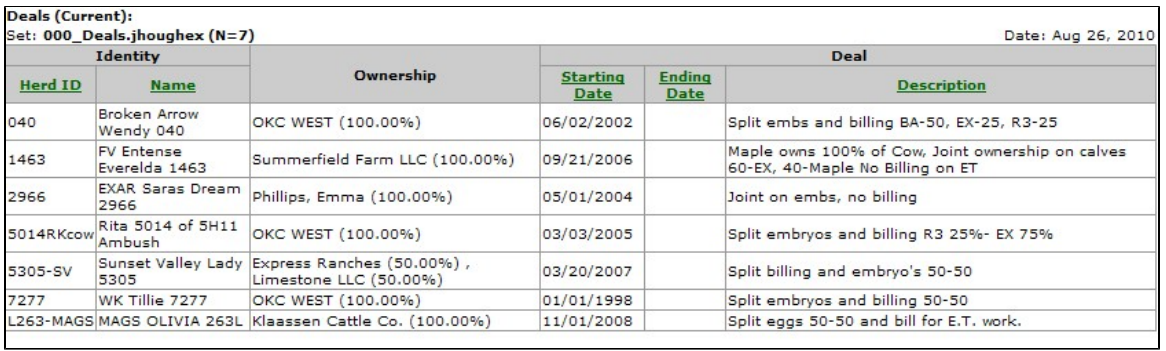
With each partnership cow you own, there is probably a "deal" worked out on who gets what calves and or embryos, who decides the service sire, who pays general or ET expenses, who has possession and when. The list goes on and on. With the "Deals" single animal edit screen, you can enter this pertinent info for each of your partnership animals. The Deals Report simply prints the Deal you potentially have with partners on a cow. You are given the option to print only active Deals (with no ending date or a future ending date) or all Deals (with an ending date in the past). There are several key places throughout GEM where you can access this report.
ET Reports
The ET Reports section of reports deals with aspects associated with Embryo Transfer. Several different reports can be generated, depending on if you are focusing on the Donor cow, the Embryo / Calf or the Recipient Cow. Throughout GEM, we consider an embryo and a calf to be nearly the same thing. The main difference is that an calf has a birth date while an embryo does not.
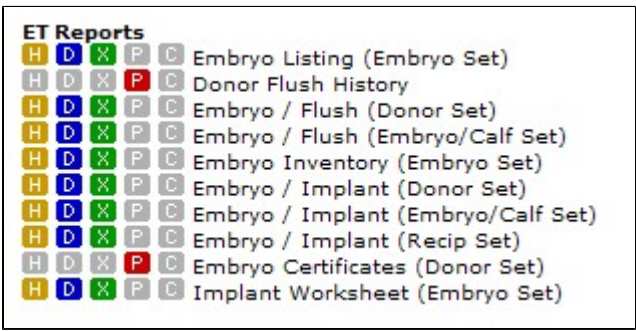
Embryo Listing (Embryo Set)
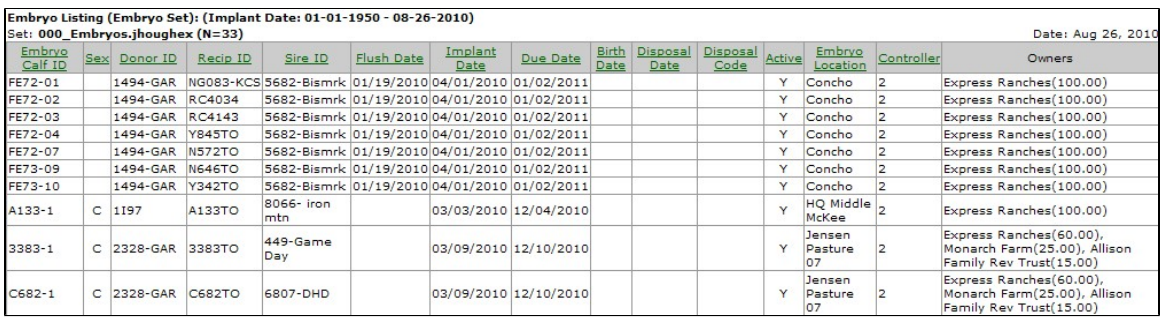
The Embryo Listing (Embryo Set) Report shows basic information about a set of embryos or calves. When printing this report, you should enter the Implant Date Range.
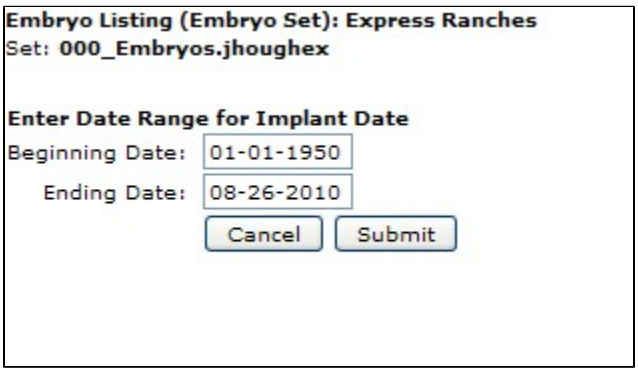
Then this report is generated. Even if an embryo / calf is in your set, if it's implant date does not match the date range your entered, that embryo / calf will not be listed.
Donor Flush History Report
Embryo - Flush (Donor Set)
Embryo - Flush (Embryo-Calf Set)
Embryo Inventory (Embryo Set)
Embryo - Implant (Donor Set)
Embryo - Implant (Embryo-Calf Set)
Embryo - Implant (Recip Set)
Embryo Certificates (Donor Set)
Implant Worksheet (Embryo Set)
Reproduction Reports
Heat Report
Breeding Report
Breeding Report (alt)
Breeding Season Report
Preg Check Report
Preg Status Report
Due Date Report
Simulated Mating EPDs
The Simulated Mating EPDs report shows estimated offspring EPDs for every cow in the current animal set crossed against every sire in the selected sire set. For each dam × sire combination, GEM averages the sire's and dam's EPD values across the traits in the selected EPD list to produce offspring estimates.
Before running this report, a sire set and an EPD list must be configured via the Simulated Mating Setup (Animals → Edit → Simulated Mating Setup). EPD Lists are created and managed under Administration → Simulated Matings.
The report can be exported to Excel or PDF.
Proposed Mating Worksheet
The Proposed Mating Worksheet is a detailed version of the Simulated Mating EPDs report, formatted as a worksheet with dams as rows. For each dam, the report shows the dam's own sire information followed by estimated offspring EPDs for each sire in the sire set — making it easy to compare all potential matings for every cow side by side.
The report can be exported to Excel or PDF.
Proposed Mating Reports
The Proposed Mating Reports show cows that have had a sire assigned through the Simulated Mating workflow (or via Edit Private Animal Data). These reports reflect the proposed AI sire and proposed mating date stored on each animal's private record.
Proposed Mating Tally
Summarizes proposed matings across your full herd, tallying the number of cows assigned to each bull along with the proposed mating dates.
Proposed Mating Tally (Active Set)
The same tally report, filtered to only the animals in your current active set.
All Individual Proposed Matings
Lists every animal in your herd that has a proposed mating on record, showing each animal's ID, the assigned sire, and the proposed mating date.
Proposed Mating List (Active Set)
The same individual listing, filtered to only the animals in your current active set.
AI Conception Analysis
Summary Reports
Progeny Carcass Summary
Progeny Carcass Summary (Ave Only)
Progeny Performance Summary
Progeny Performance Summary (Ave Only)
Progeny Ultrasound Summary
Progeny Ultrasound Summary (Ave Only)
Progeny Sales Summary
Animal Production Report
Pasture Reports
Calving Worksheet
Pasture Inventory Report
Pasture Calving Report
If there is a "CALF DIED" line on the report and this is not correct, this is nearly always caused by the cow's last year's calf being made inactive with no weaning date.
Preg Check Worksheet
AI Breeding Worksheet
Donor Inventory Report
Pasture Animal Counts
Angus Association Forms
Calf Registration Form (AAA)
Electronic Calving Book Spreadsheet (AAA)
Calving Weaning Form (AAA)
Yearling Form (AAA)
Ultrasound Barn Sheet (AAA)
Ultrasound Barn Sheet 2 (AAA)
Hereford Association Forms
Calf Registration Form (AHA)
Weaning Form (AHA)
Yearling Form (AHA)
Ultrasound Barn Sheet (AHA)
AHA Inventory Form
Limousin Association Forms
ET DNA Application (NALF)
Birth Application (NALF)
Weaning Application (NALF)
Yearling Application (NALF)
Ultrasound Barn Sheet (NALF)
Ultrasound Barn Sheet 2 (NALF)
Simmental Association Forms
Reg-Birth-Wn-Yr-Trans Form (ASA)
Custom Reports
Review User Log Report
Inventory Issue Cattle Report
Inventory Change Report
All Sets For An Animal Report
General Inventory Tally
General Inventory Animal Listing
Browse - Animals
All Animal Browse screens are meant to look at specific information for one animal on the screen. These are not designed to be printed to paper. Animal Reports are designed to go to paper and print specific data for a group of cattle, usually your currently active animal set.
General/Performance Reports
Animal Reports are where you report information on multiple animals at one time. Typically, animal on the report are those in your active animal set. Those reports that do not print your currently active set are so noted. There are five output options which you can output your report. Not all reports have all output options though. Only non-grayed-out (colored) options are available for a given report.